Breadcrumb Setup
Overview
Breadcrumbs allow a user to understand where they are in the hierarchy of a website and quickly navigate levels. For example, the College of Science: Science Educational Enhancement Services (SEES) site needed to allow users to navigate back to the College of Science home page. The following is how to set up breadcrumbs for a site like SEES.
Page View
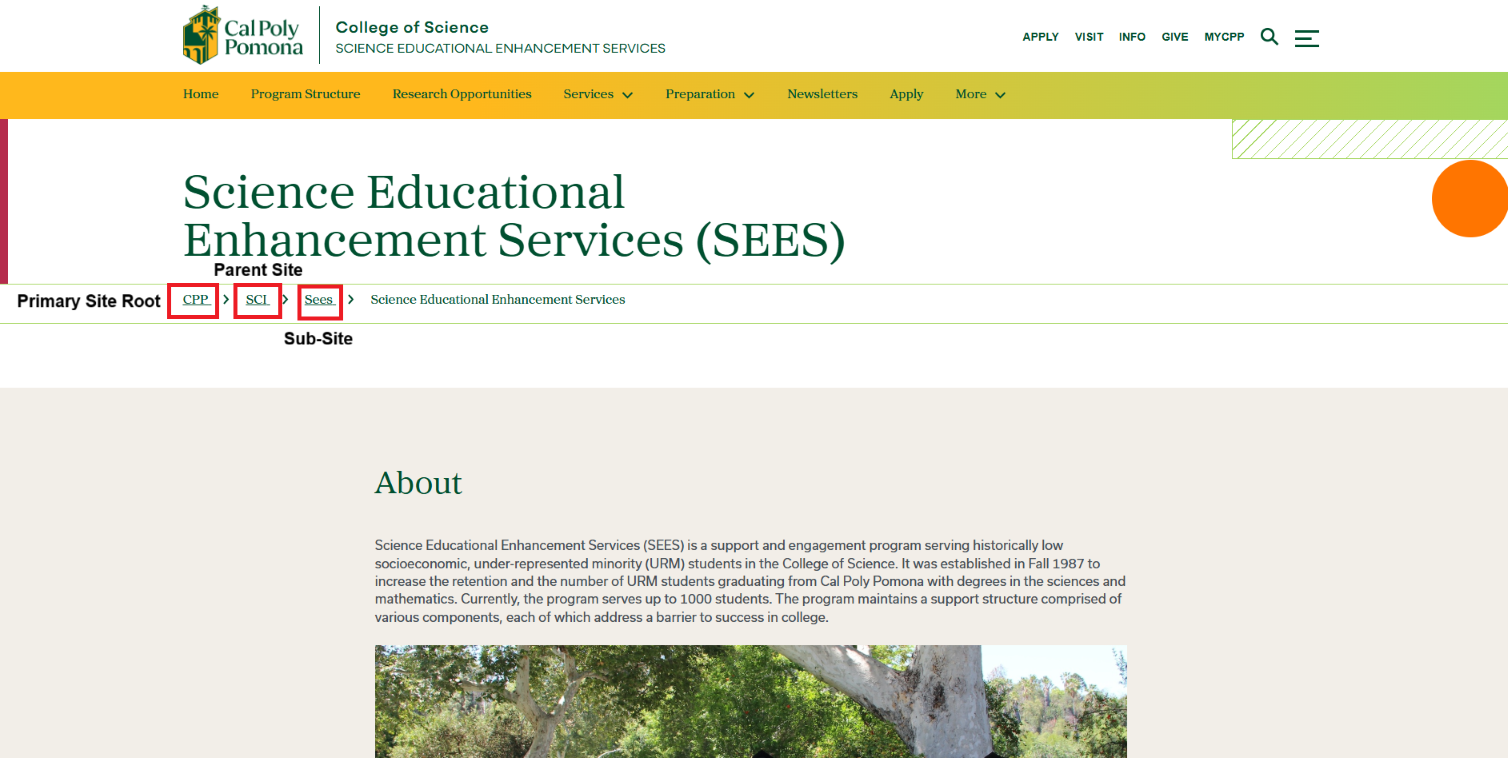
Enabling Breadcrumbs
Breadcrumbs display only after the page is updated, submitted, and published with Show Breadcrumb = Yes. Subpages will automatically appear in the breadcrumb trail once their settings are enabled and published.
Cascade View (Editing Mode)
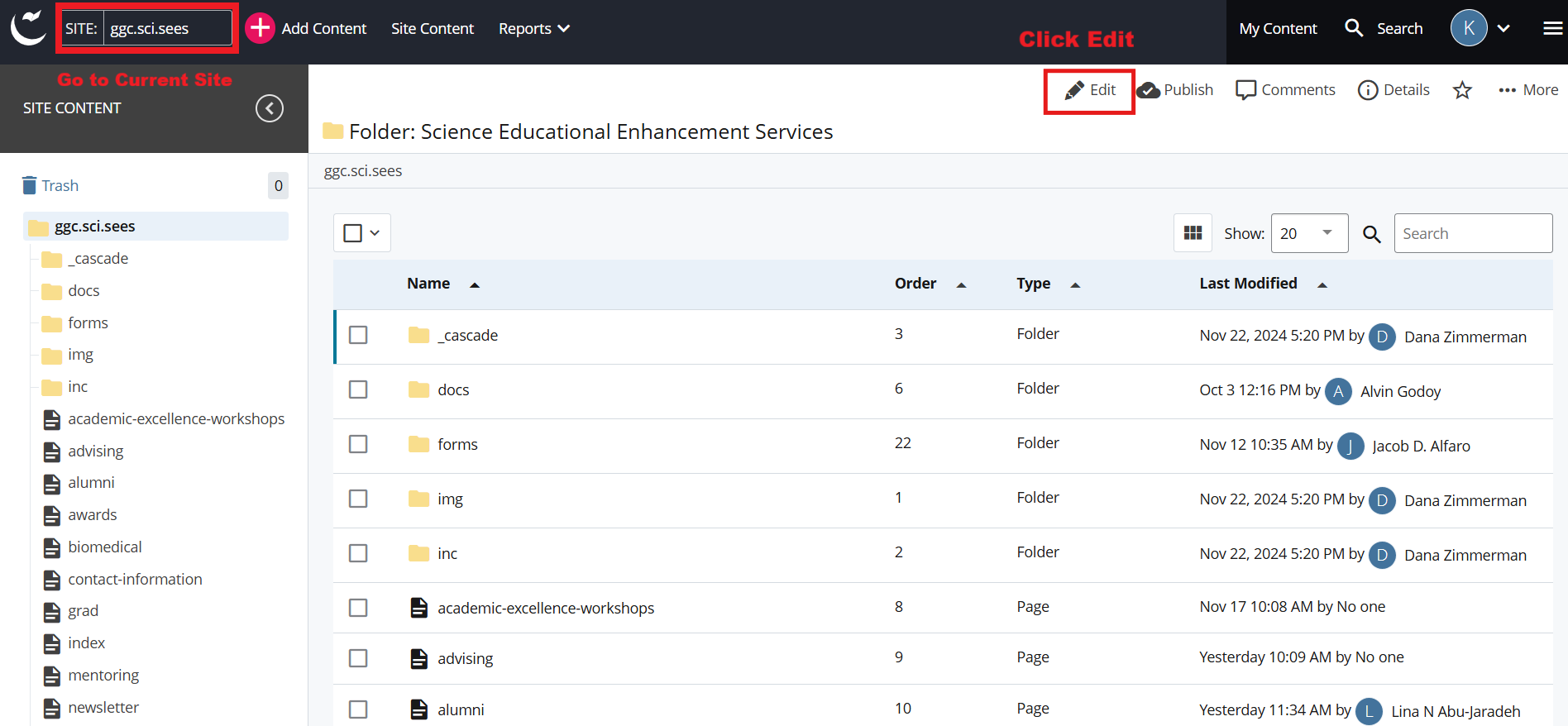
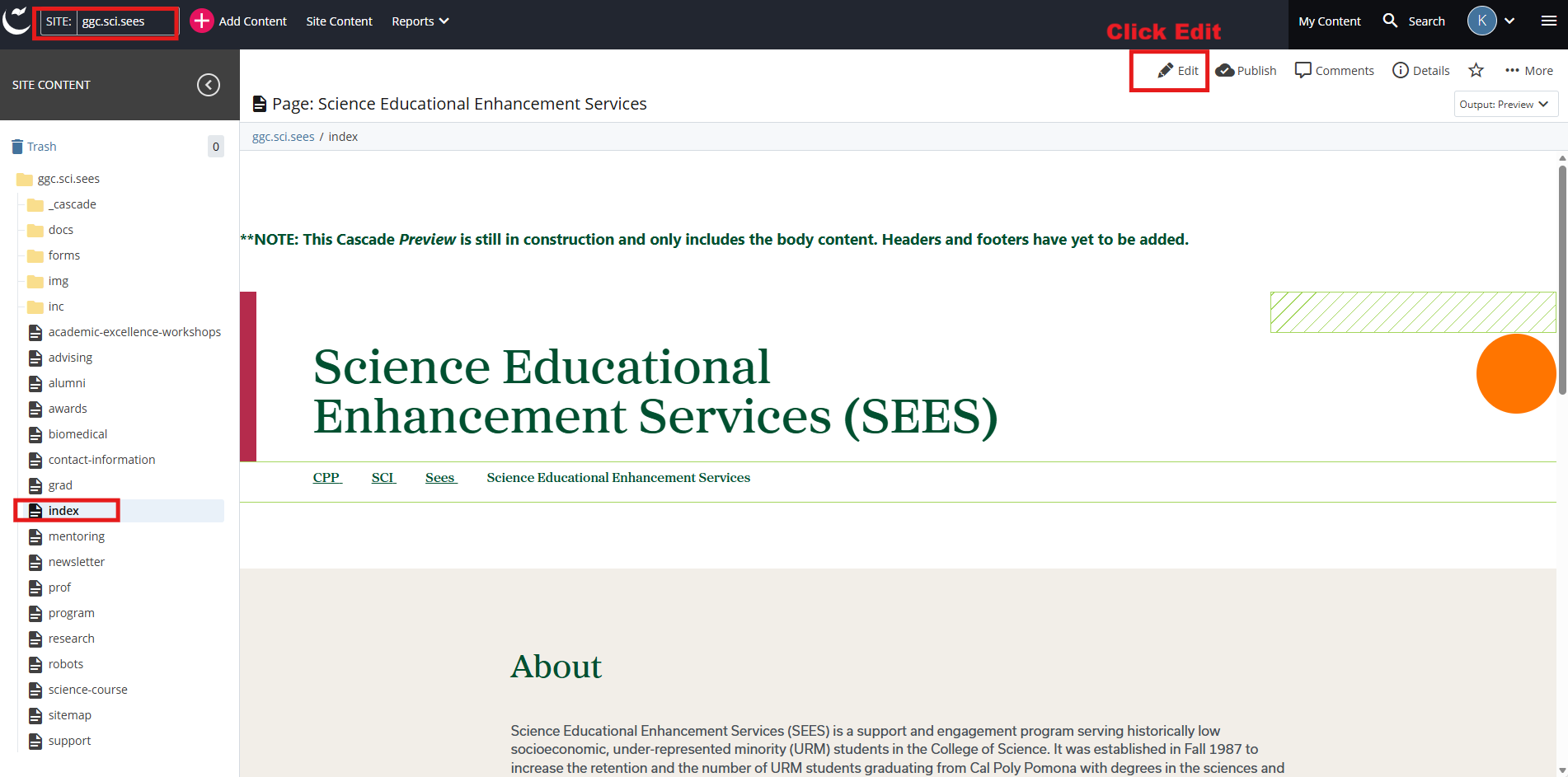
In Cascade, navigate to the target site (root folder) and select Edit.
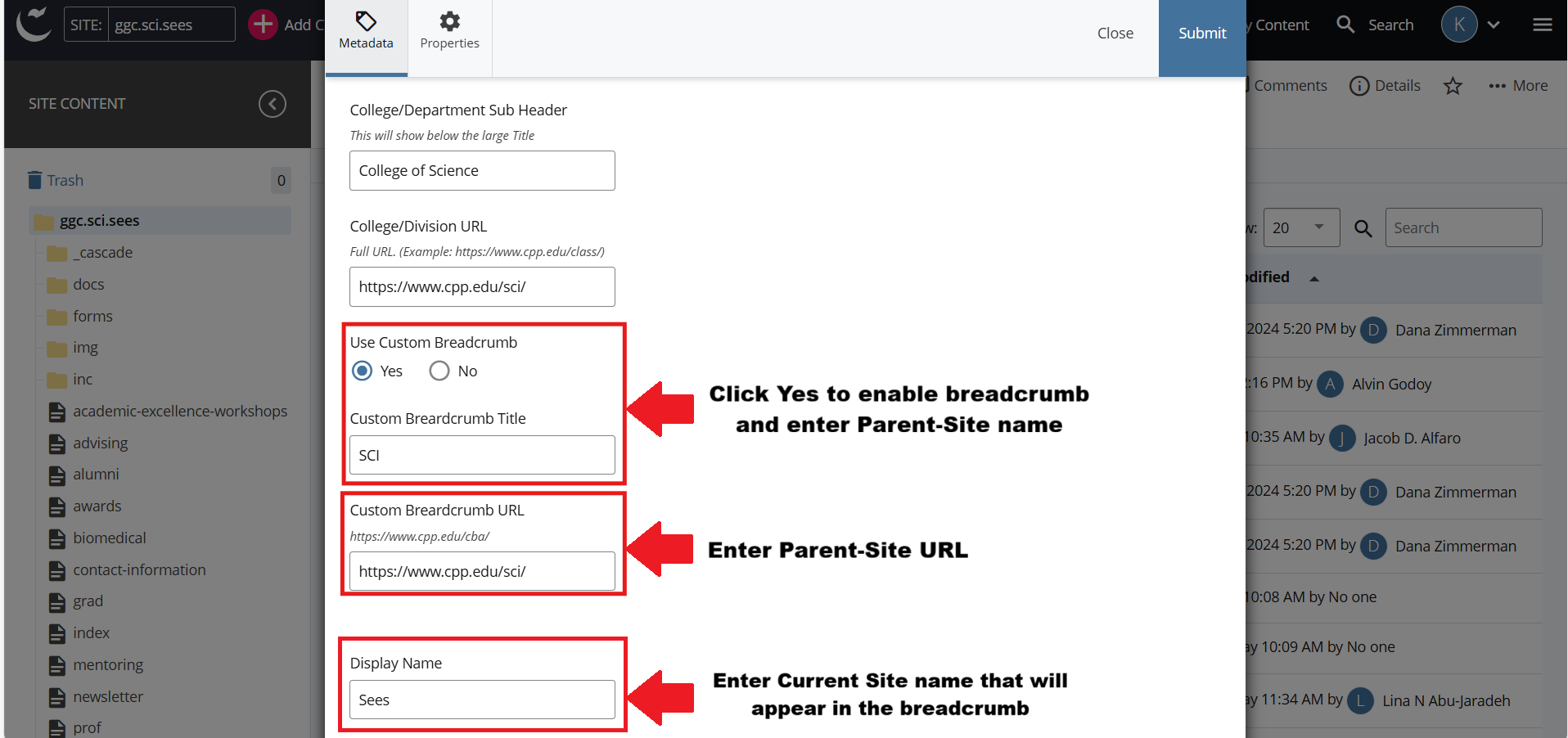
The parent site is defined as the site directly above your current site. Enter the Custom Breadcrumb Title and Custom Breadcrumb URL for that parent site. Enter the Display Name for your current site, which will appear in the breadcrumb trail.
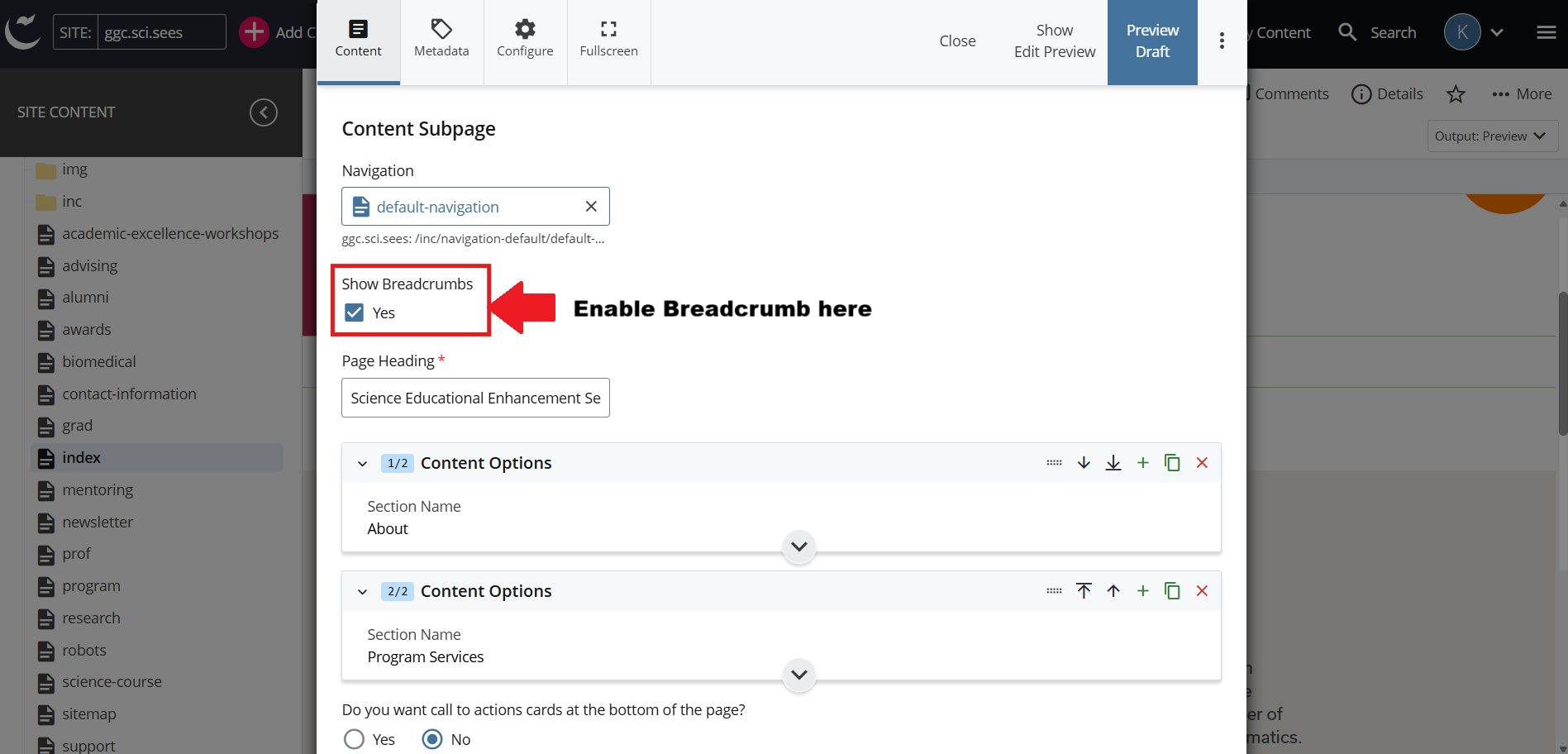
You must enable breadcrumbs on every page where you want them to appear.
Cascade View (Editing Mode)
Navigate to the page where the breadcrumb should appear and select Edit.
Activate the breadcrumb functionality by choosing Yes. The breadcrumb will be rendered directly below the Page Heading.