Text Formatting
Instructions
Text Formatting allows users to structure and style content using headings, paragraphs, lists, and emphasis tools such as bold or italics. It makes sure content is organized, readable, and aligned with established web standards. Proper use of formatting improves accessibility, consistency, and overall user experience.

Basic VS Advanced Editing Features
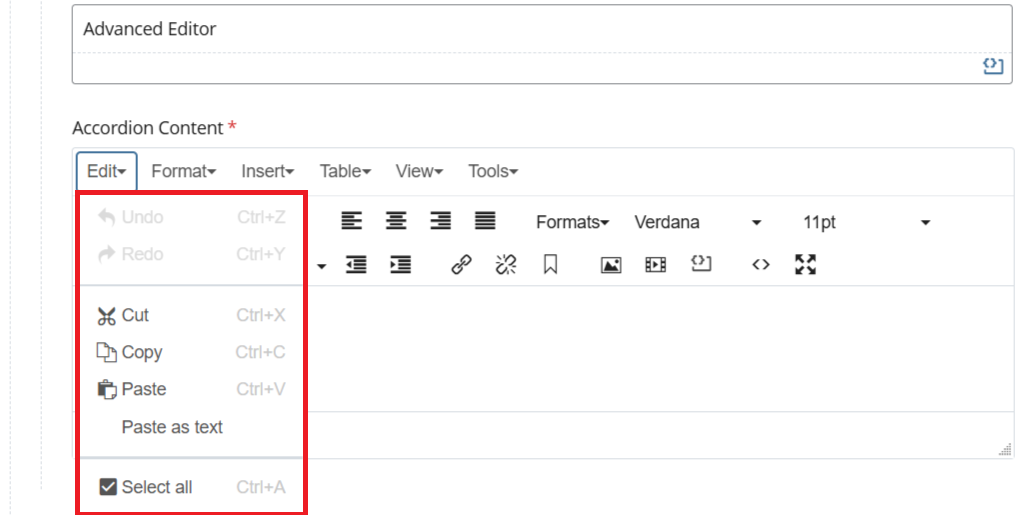
Edit
Provides basic content actions such as undo, redo, cut, copy, and paste.
Provides basic content actions such as undo, redo, cut, copy, and paste.
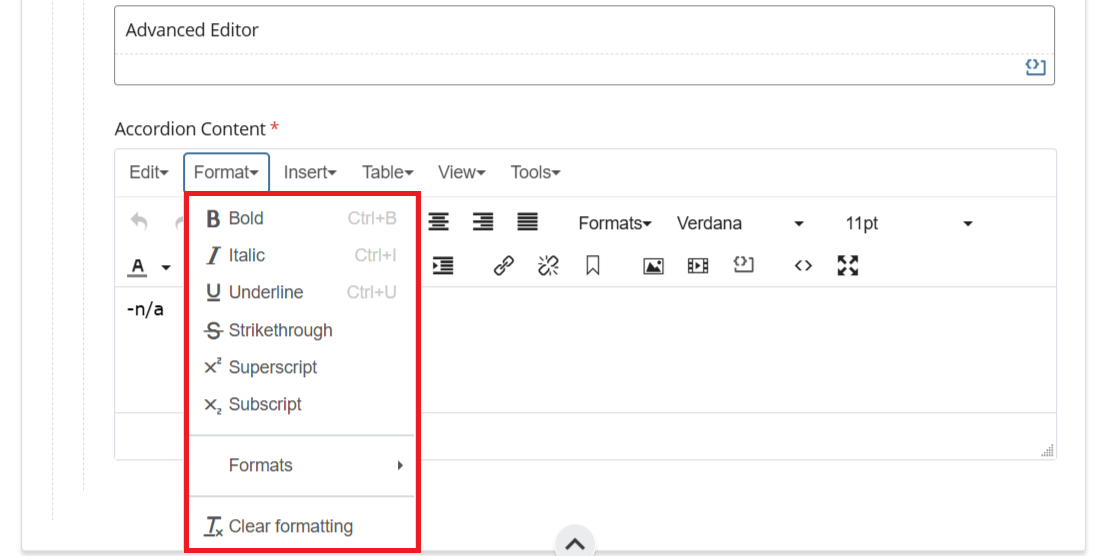
Format
Controls text styling options including bold, italics, headings, and clearing formatting.
Controls text styling options including bold, italics, headings, and clearing formatting.
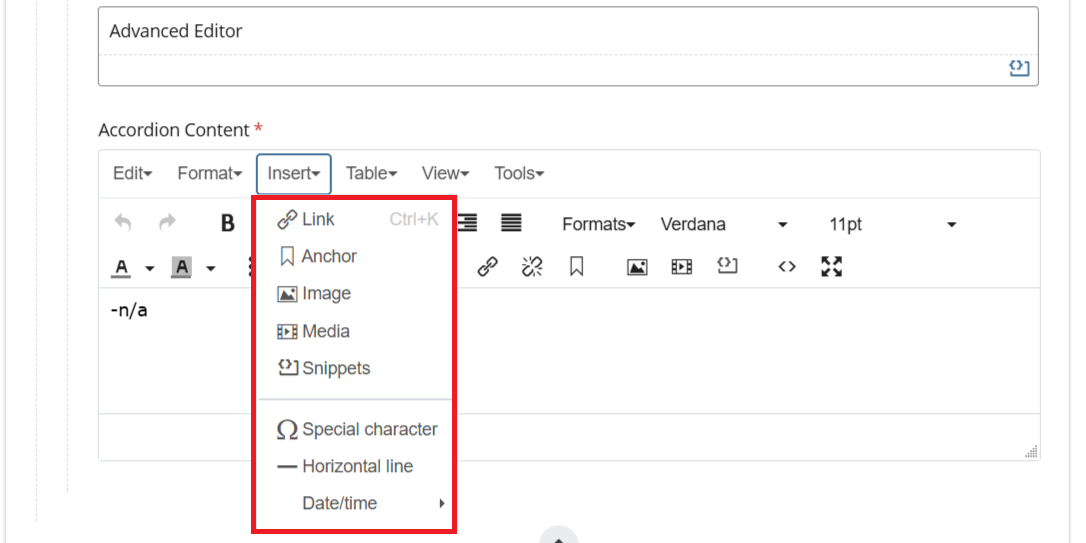
Insert
Allows users to add elements such as links, anchors, images, media, and special characters.
Allows users to add elements such as links, anchors, images, media, and special characters.
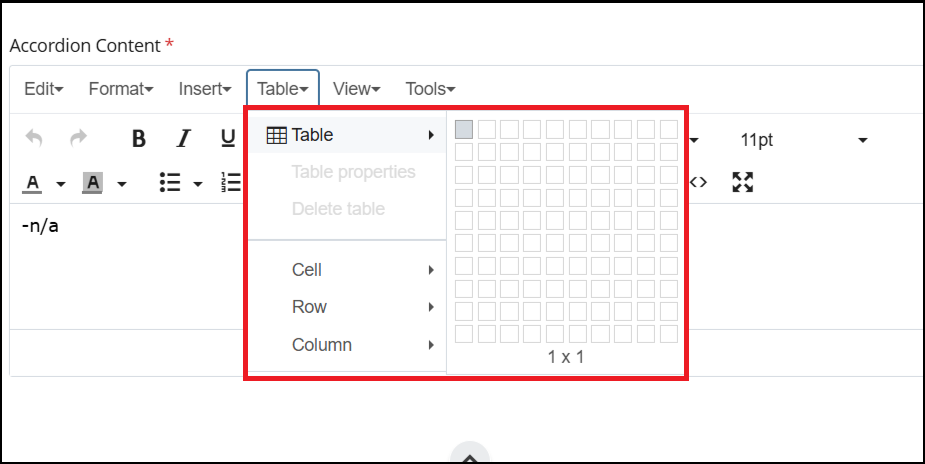
Table
Enables creation and editing of tables, including rows, columns, and cell properties.
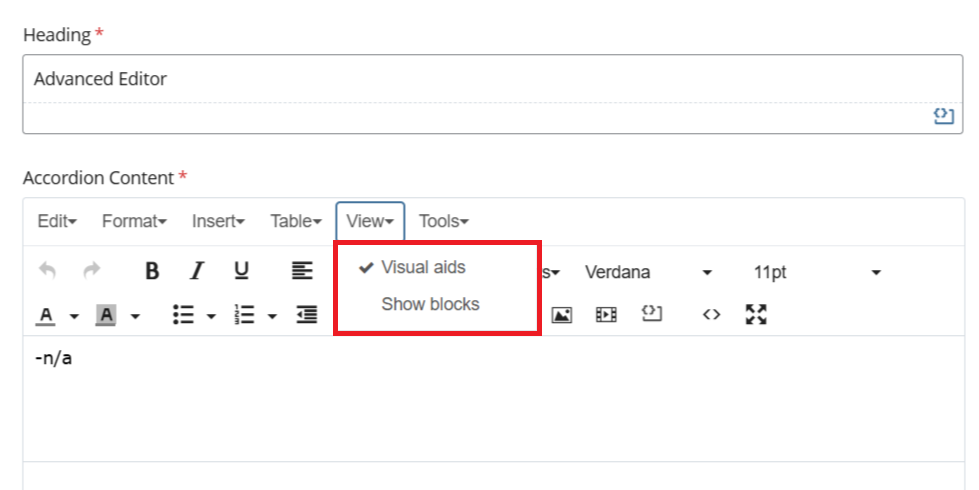
View
Adjusts how content is displayed in the editor, including visual aids and block outlines.
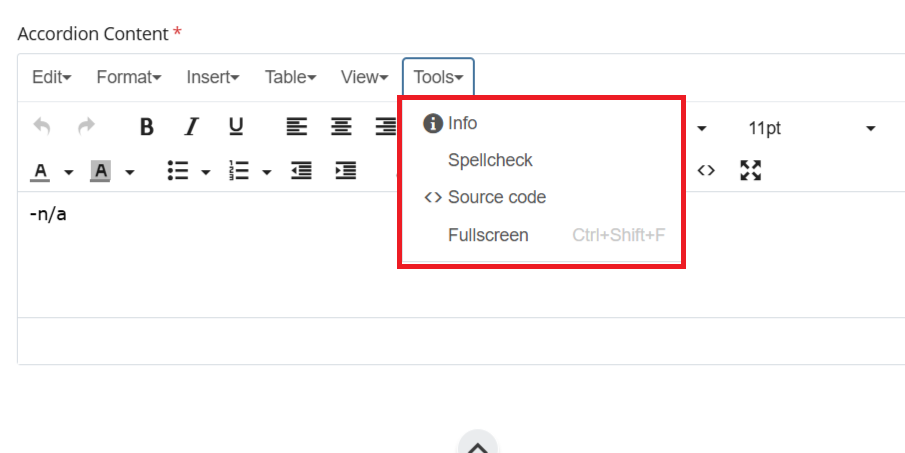
Tools
Offers utility functions such as spellcheck, source code view, and fullscreen editing.
Offers utility functions such as spellcheck, source code view, and fullscreen editing.

- Undo / Redo - Reverts or restores recent changes made within the editor. This allows users to quickly correct mistakes without manually re-editing content.
- Basic Text Styling - Applies standard emphasis such as bold, italic, and underline to selected text. These tools should be used sparingly to maintain readability and consistency.
- Text Alignment - Controls how text is aligned within the content area, including left, center, right, and justified alignment. Proper alignment helps maintain a clean and professional layout.
- Lists (Bulleted & Numbered) - Creates structured lists to organize content in a clear and scannable format. Use bulleted lists for unordered items and numbered lists for sequential steps.
- Indentation Controls - Adjusts the indentation level of text or list items to reflect hierarchy. This is commonly used to create nested lists or improve content structure.
- Fullscreen Mode - Expands the editor to fill the screen for a more focused editing experience. This is useful when working with longer or more complex content.
- Advanced Editor (Expanded Toolbar) - Displays additional formatting and editing options not shown in the default view. This mode provides greater control for advanced content formatting needs.
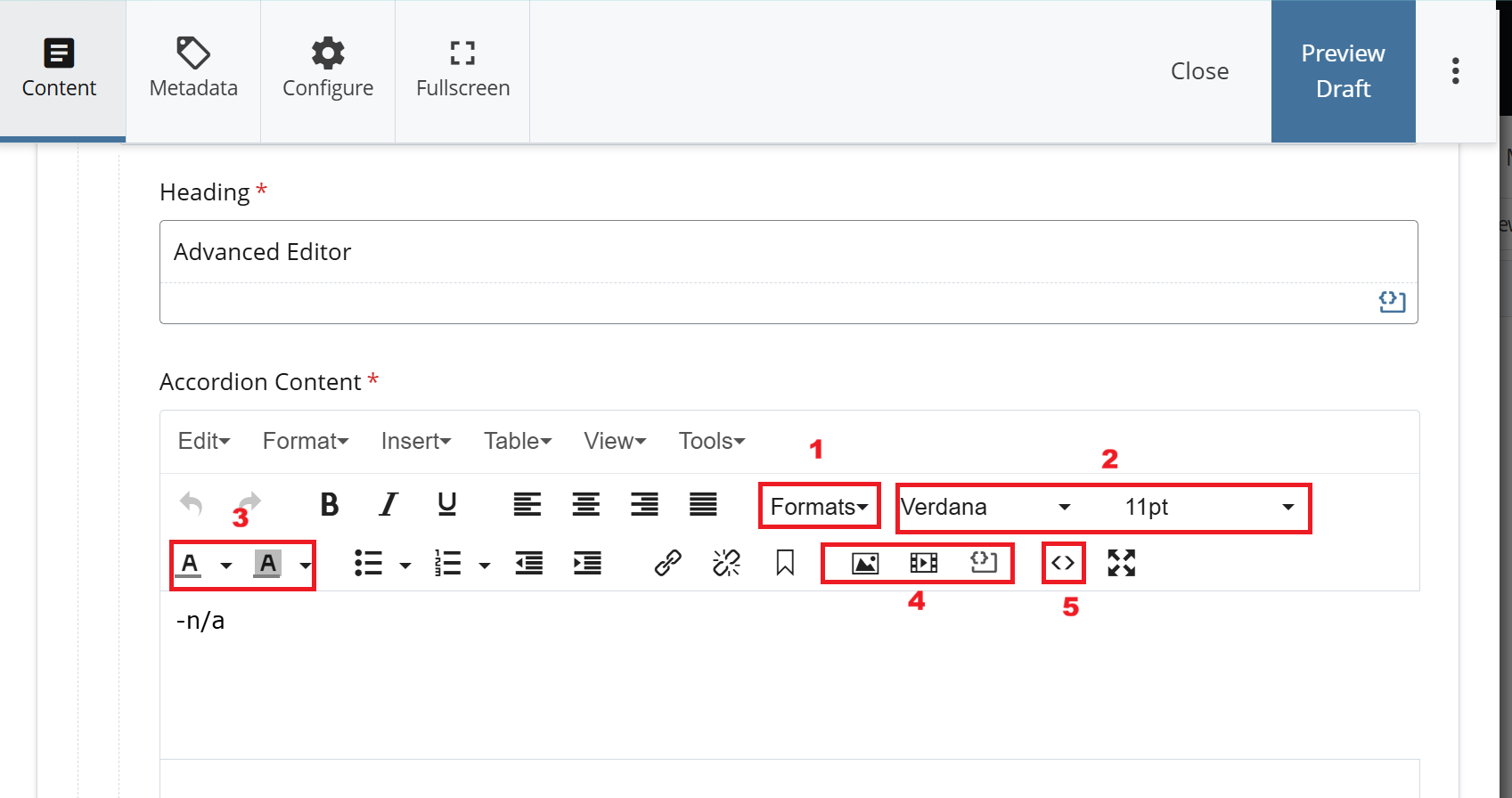
These features are available in the Advanced Editor and are in addition to the standard tools provided in the basic editor.
- Formats (Advanced) - Provides additional structural options such as headings, paragraphs, blockquotes, and inline code for more precise content organization.
- Font & Text Size - Allows selection of font family and size to control the visual appearance of text.
- Text Color & Background - Enables customization of text color and highlight/background color for emphasis.
- Media (Images & Video) - Allows insertion and management of images and embedded media within the content. Code Snippet - Inserts preformatted code blocks for displaying technical or programming content.
- Source Code - Opens the full HTML view, allowing direct editing of the underlying content markup.