Anchor Link Instructions
An anchor is a unique ID placed on a specific element so a link can jump directly to that location and optionally trigger behavior. When a user clicks a link containing that ID, the browser navigates to the element with the matching anchor.
To test anchor links and see how they function, visit the mockup page below. This page is hosted on a test environment, so access requires the Cal Poly Pomona's VPN (Virtual Private Network).
Page View
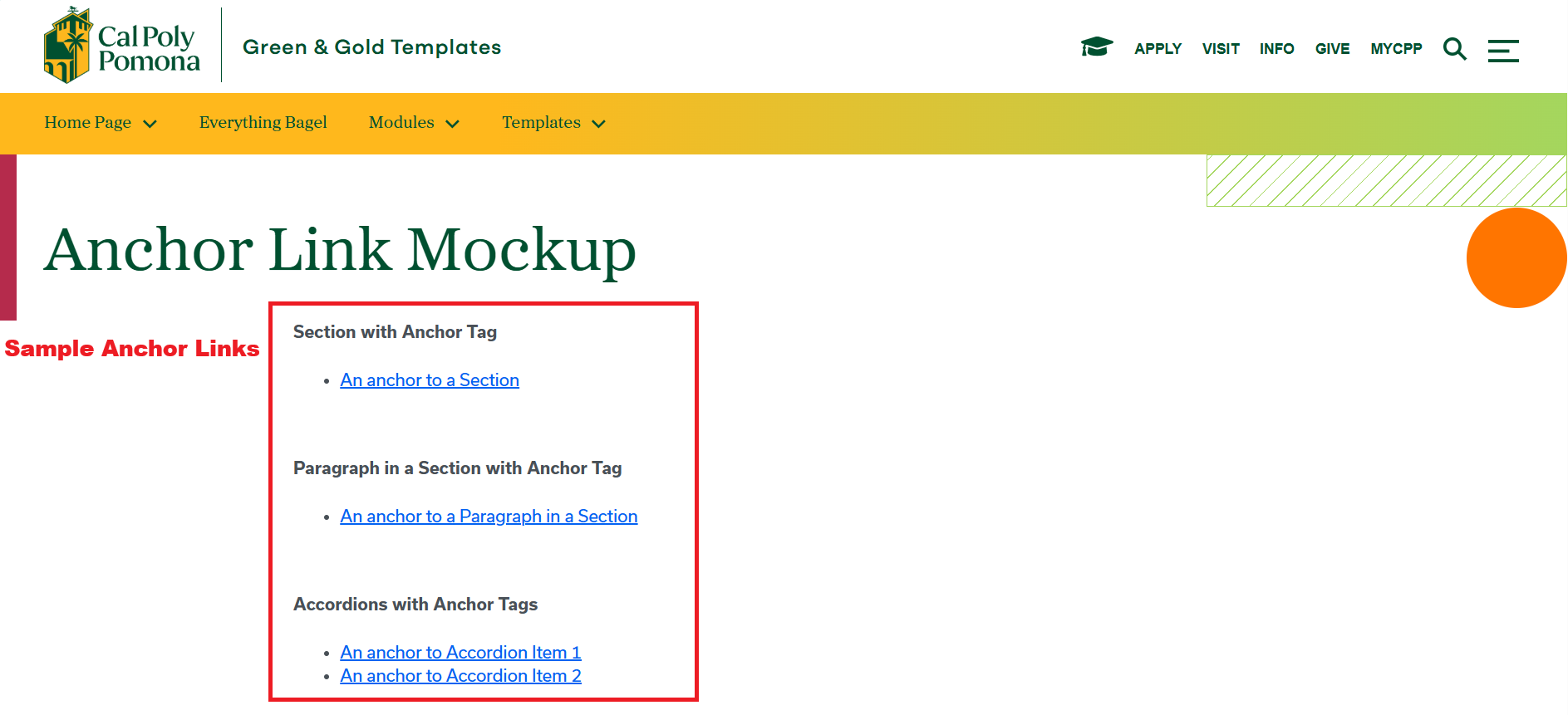
For this section you will need:
- Anchor Link
- Anchor ID
Cascade View
Instructions:
- Chain Icon Buttons: Insert/Edit Anchor Link
- Bookmark Button: Create an Anchor ID
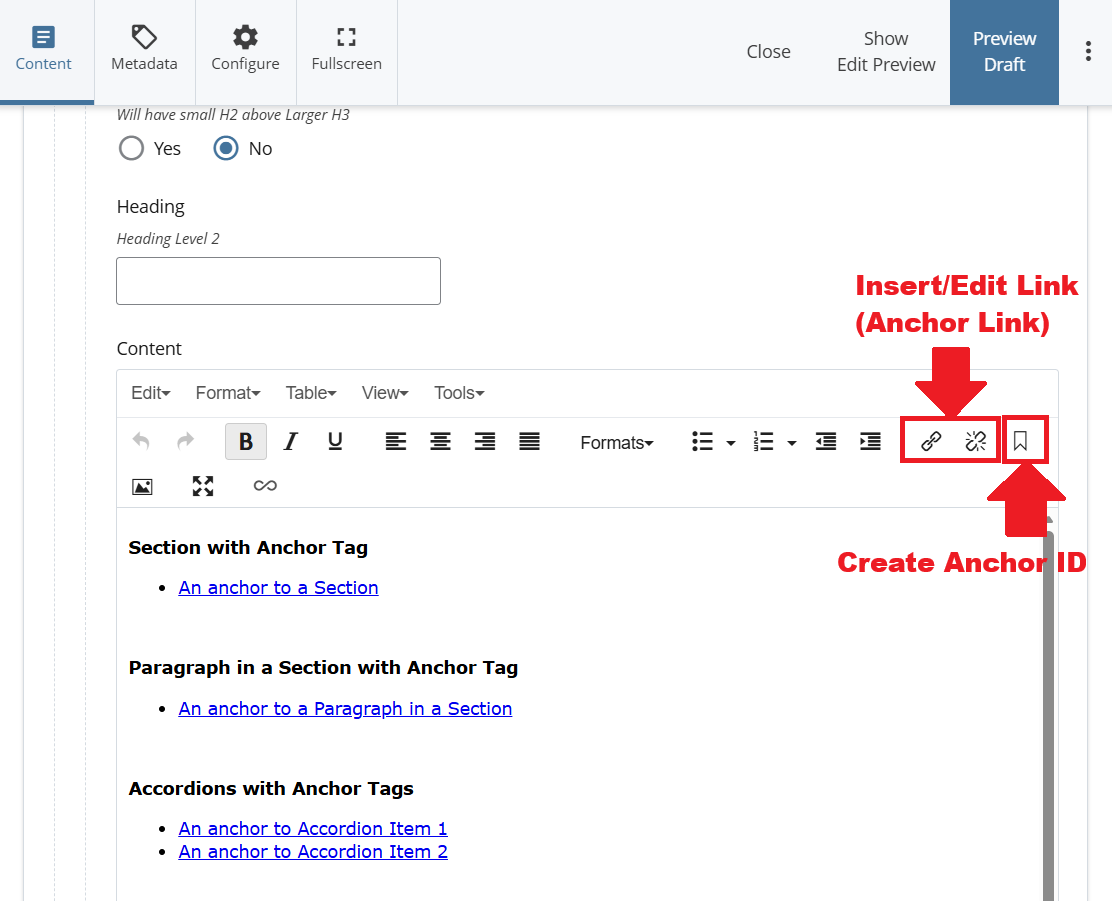
Adding Anchor Tag IDs
Page View
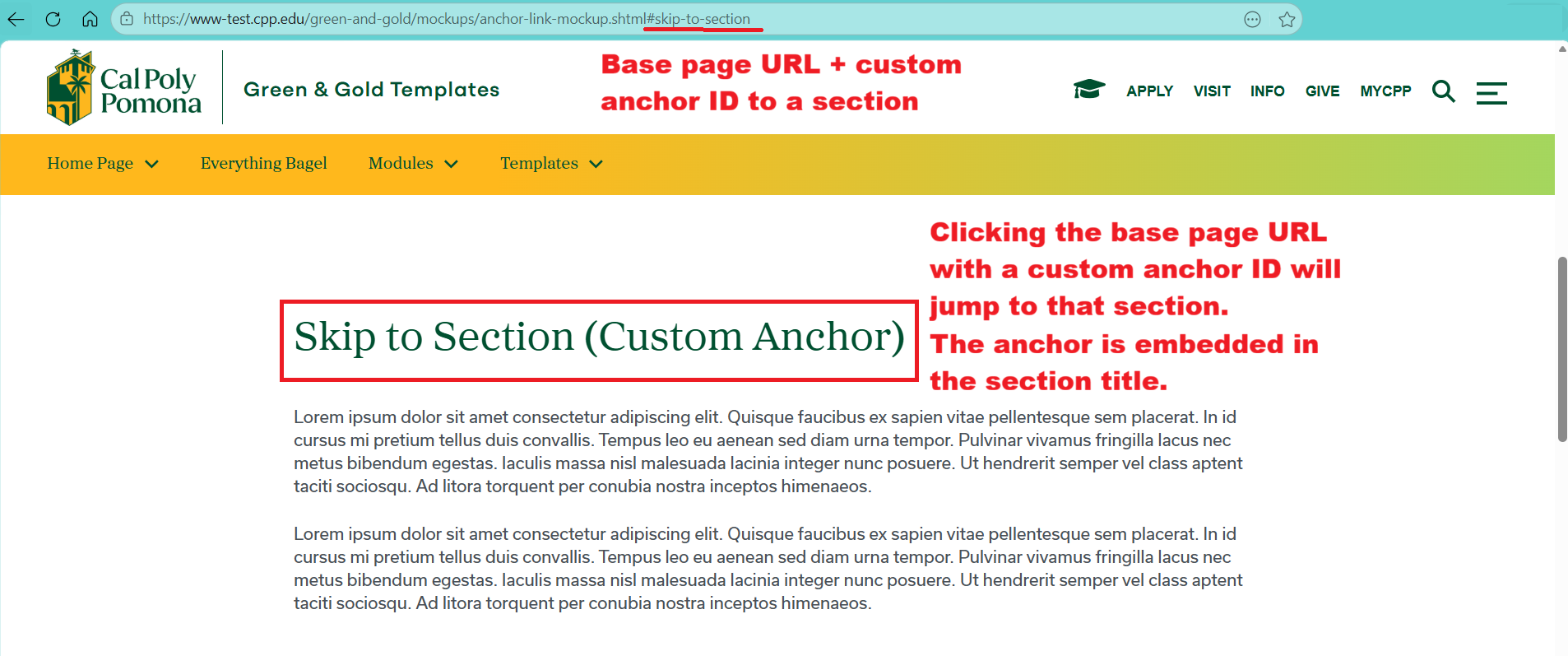
Instructions Description:
- Create an Anchor ID for a Section using the base page's URL + custom anchor ID to a section
- Clicking the base page URL with a custom anchor ID will jump to that section. The anchor is embedded in the section title.
Cascade View
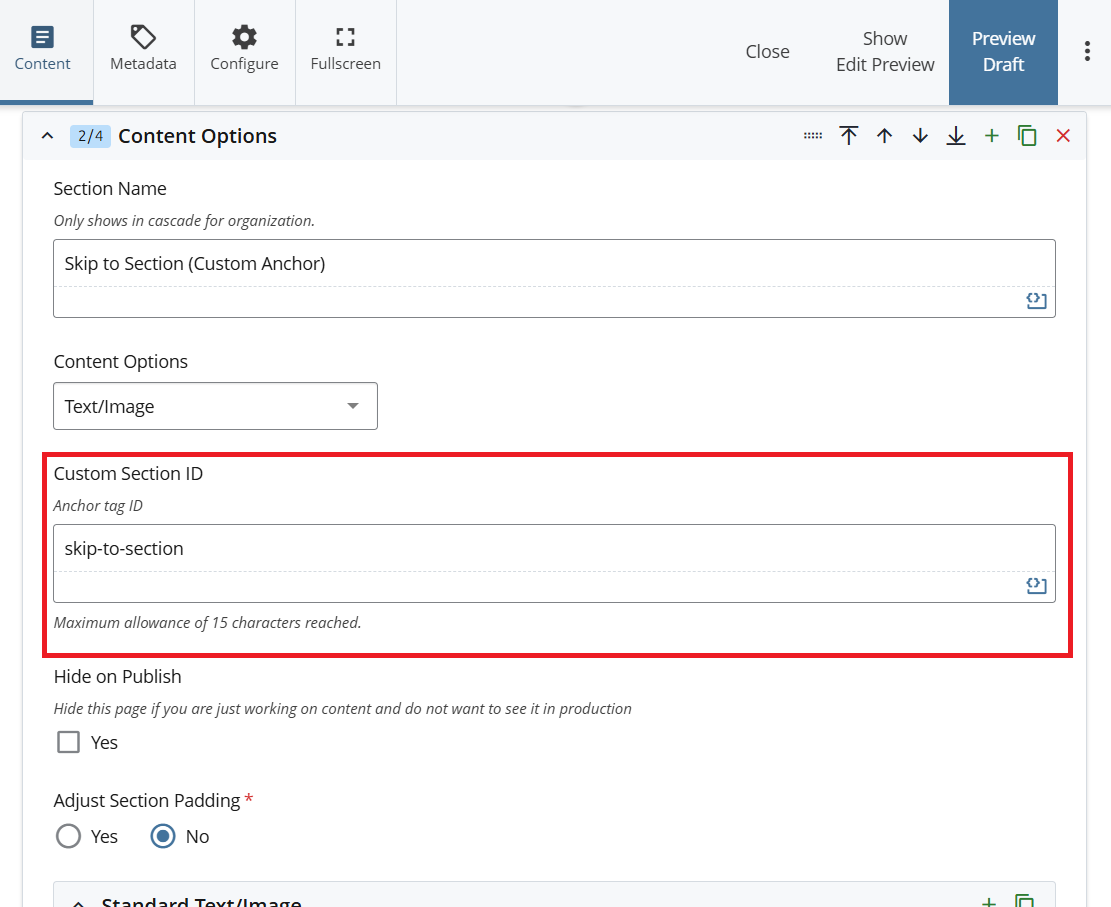
- In Cascade, navigate to the section where you want users to jump.
- In Content Options, enter a value in Custom Section ID (Anchor Tag ID).
Cascade View
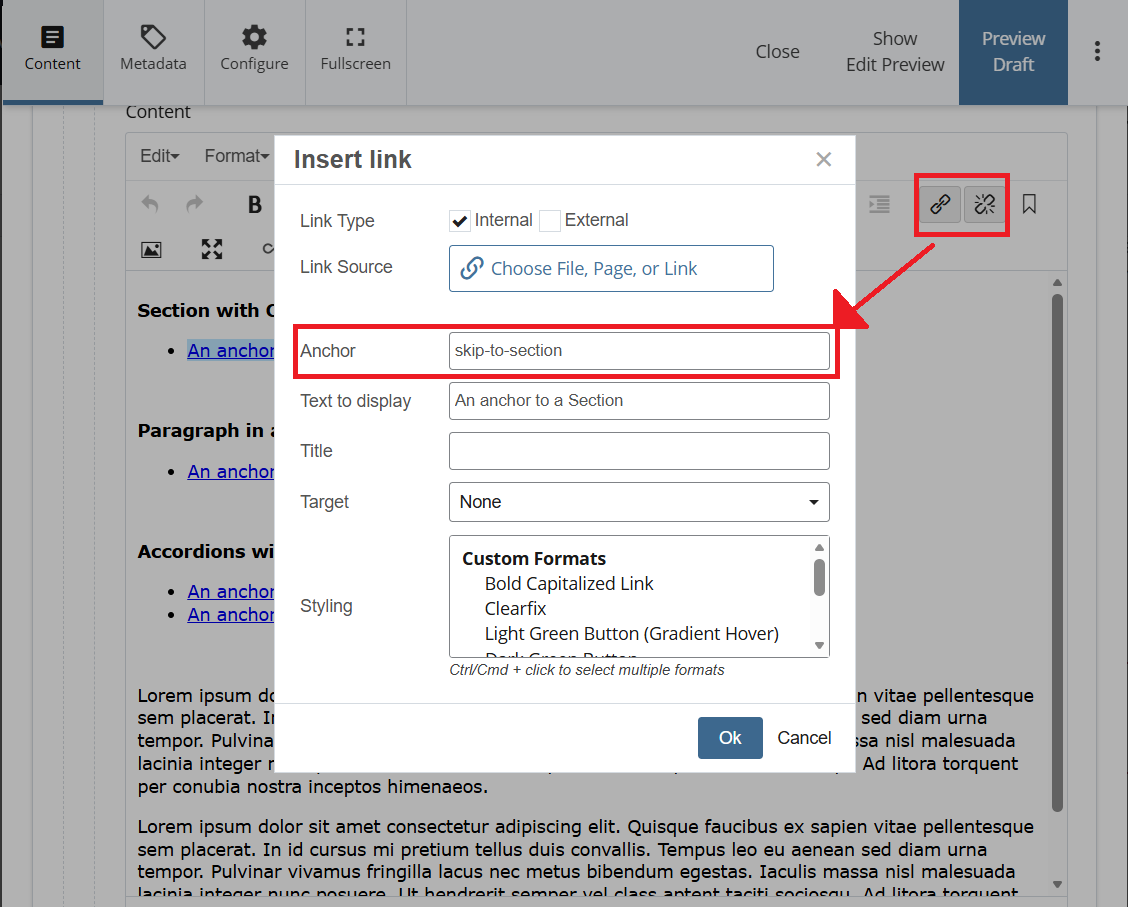
Adding the link
- Go to the content area where the link will be placed.
- Insert a hyperlink.
- In the Anchor field, enter the custom section ID you created.
Page View
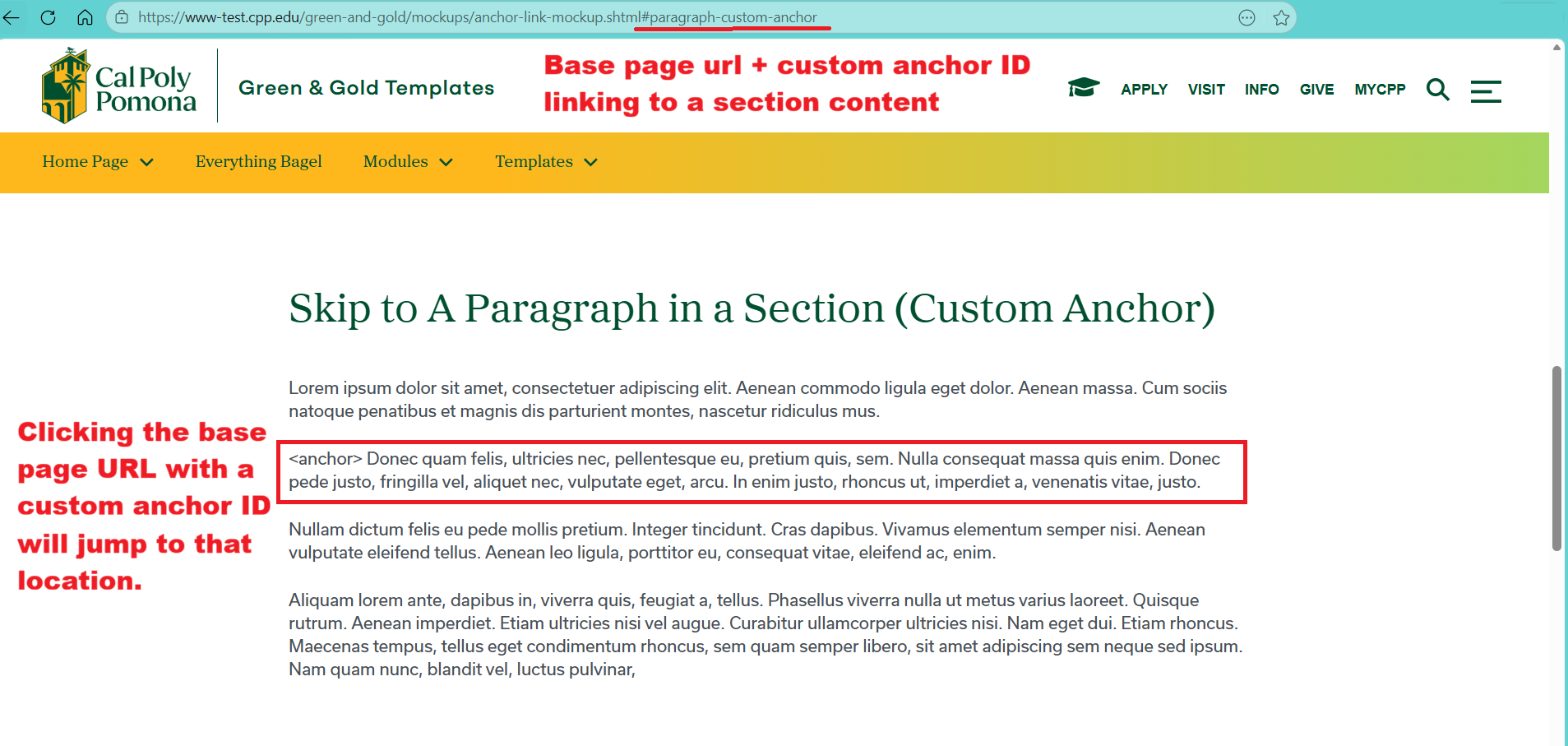
Instructions Description:
- Create an Anchor ID for a Section using the base page's URL + custom anchor ID to a section's content
- Clicking the base page URL with a custom anchor ID will jump to the content location.
Cascade View
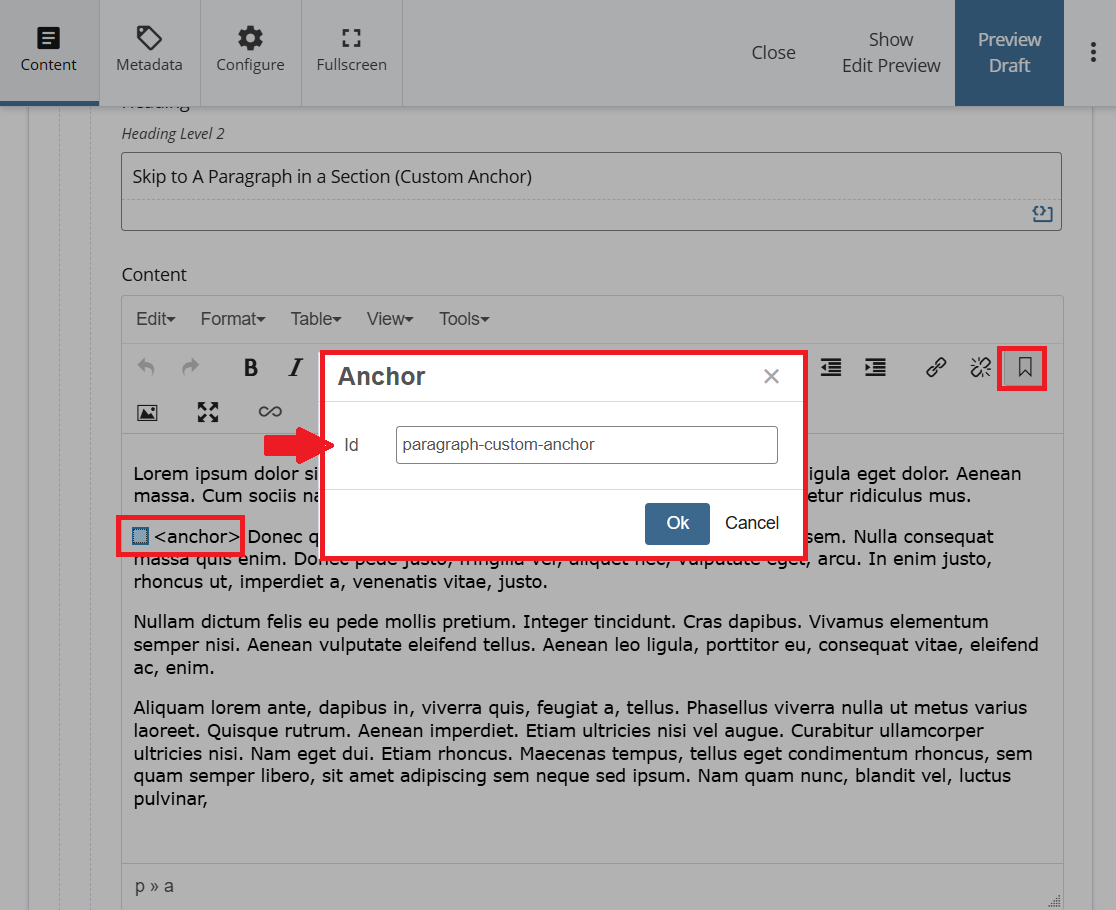
- Navigate to the section where you want to add the anchor.
- In the section content editor, place your cursor where the anchor should appear.
- Click the bookmark icon and enter a custom anchor ID, then save.
Cascade View
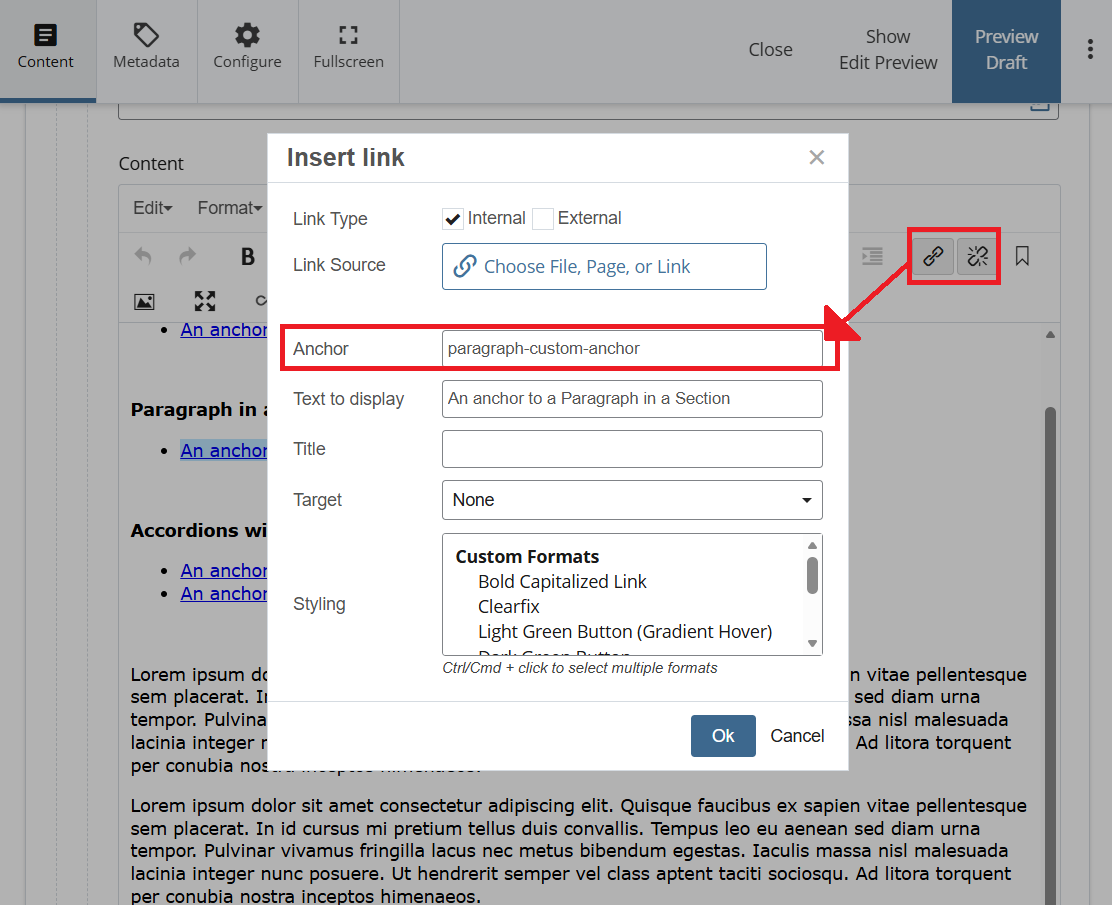
Adding the link
- Go to the content area where the link will be placed.
- Insert a hyperlink.
- In the Anchor field, enter the custom anchor ID you created.
Page View
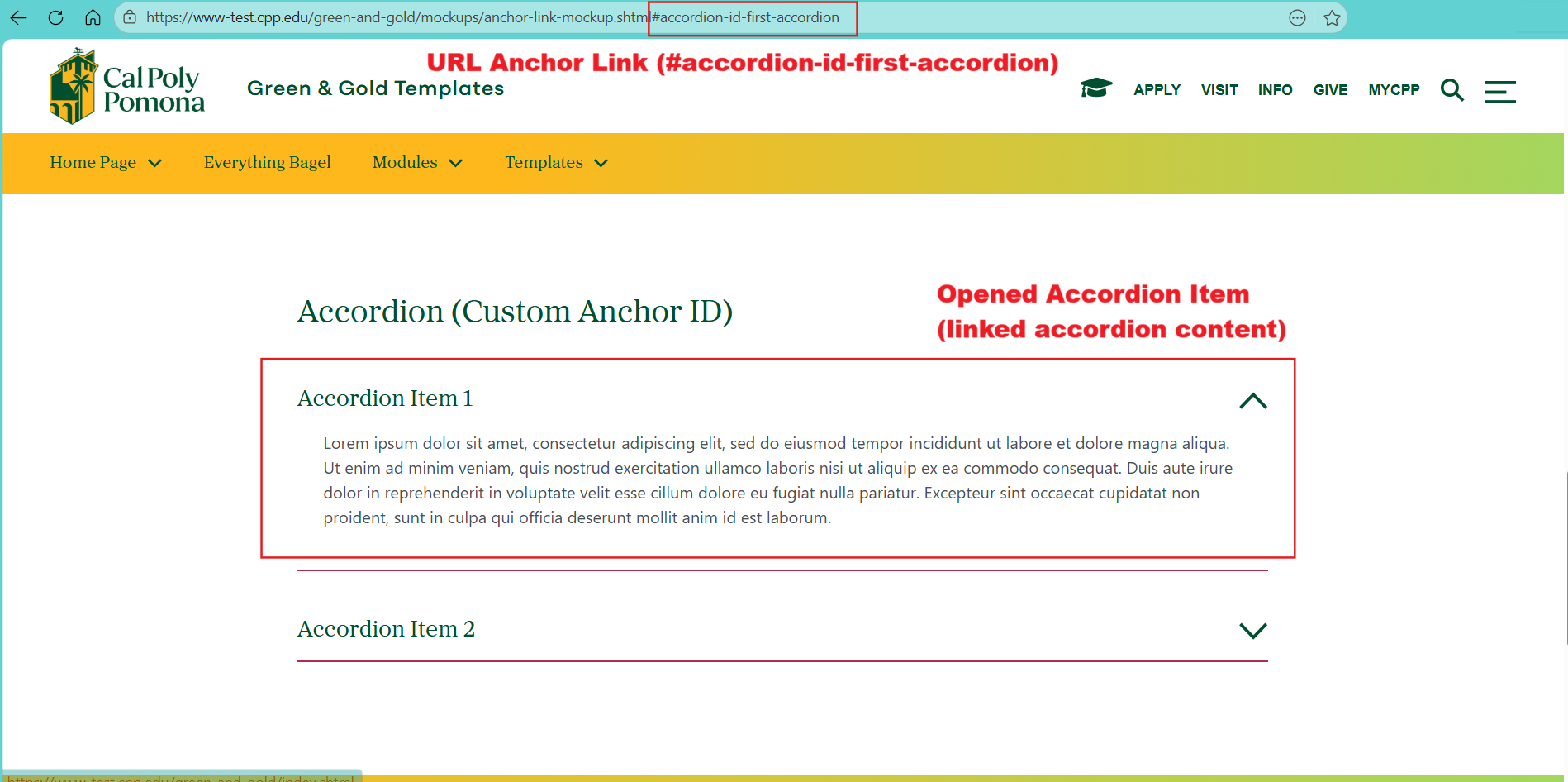
Instructions Description:
- Create an Anchor ID for a Section using the base page's URL + custom anchor ID to an accordion section
- Clicking the base page URL with a custom anchor ID will jump to the opened accordion content.
Cascade View
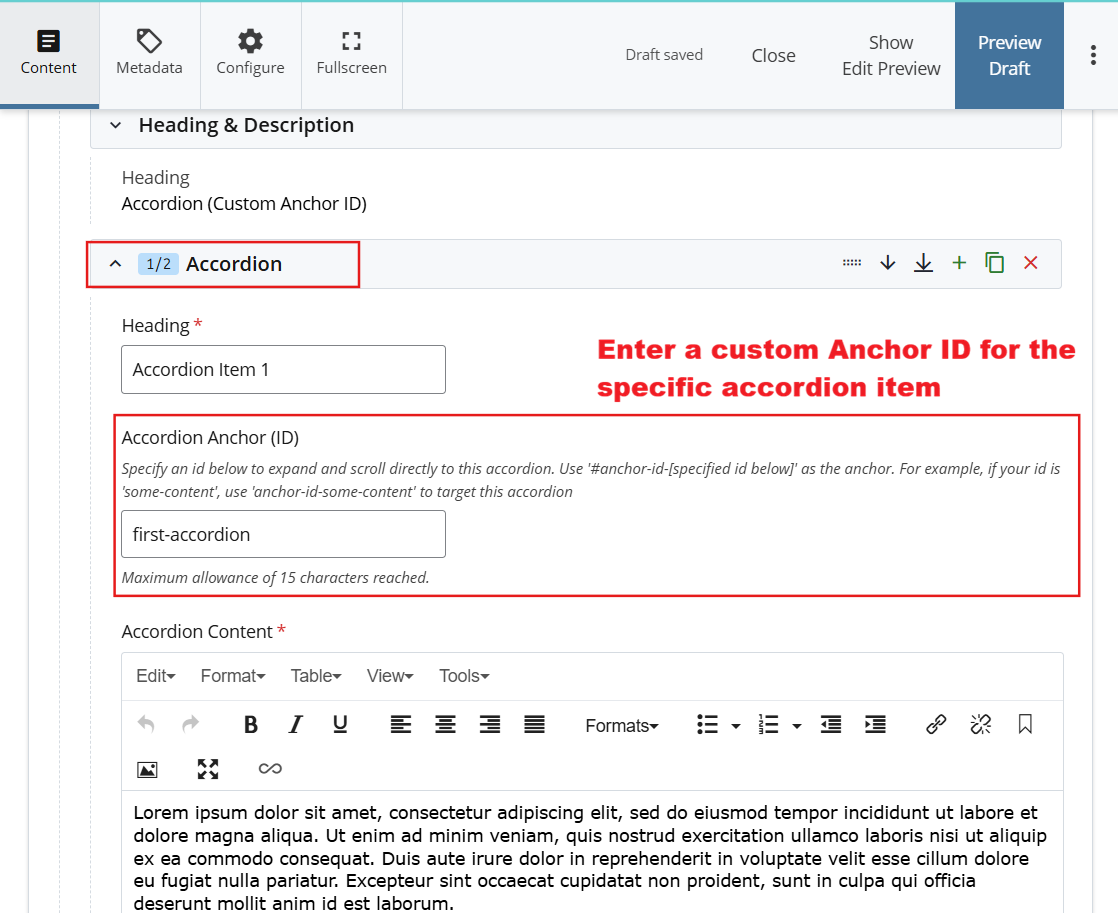
Steps to link to an accordion item
- In Cascade, locate the accordion item you want to link to.
- In the accordion item settings, enter a custom Anchor ID for that specific accordion item.
- The system automatically generates the final accordion anchor by adding accordion-id- before your custom Anchor ID.
Example
- If your custom Anchor ID is some-content, the final anchor becomes: #accordion-id-some-content
- Use the format #accordion-id-[custom-anchor-id] after the base page URL.
- If the custom Anchor ID is first-accordion, the final link becomes: #accordion-id-first-accordion
The custom Anchor ID is created manually by the user, and the system automatically adds accordion-id- in front of it for the final anchor link.
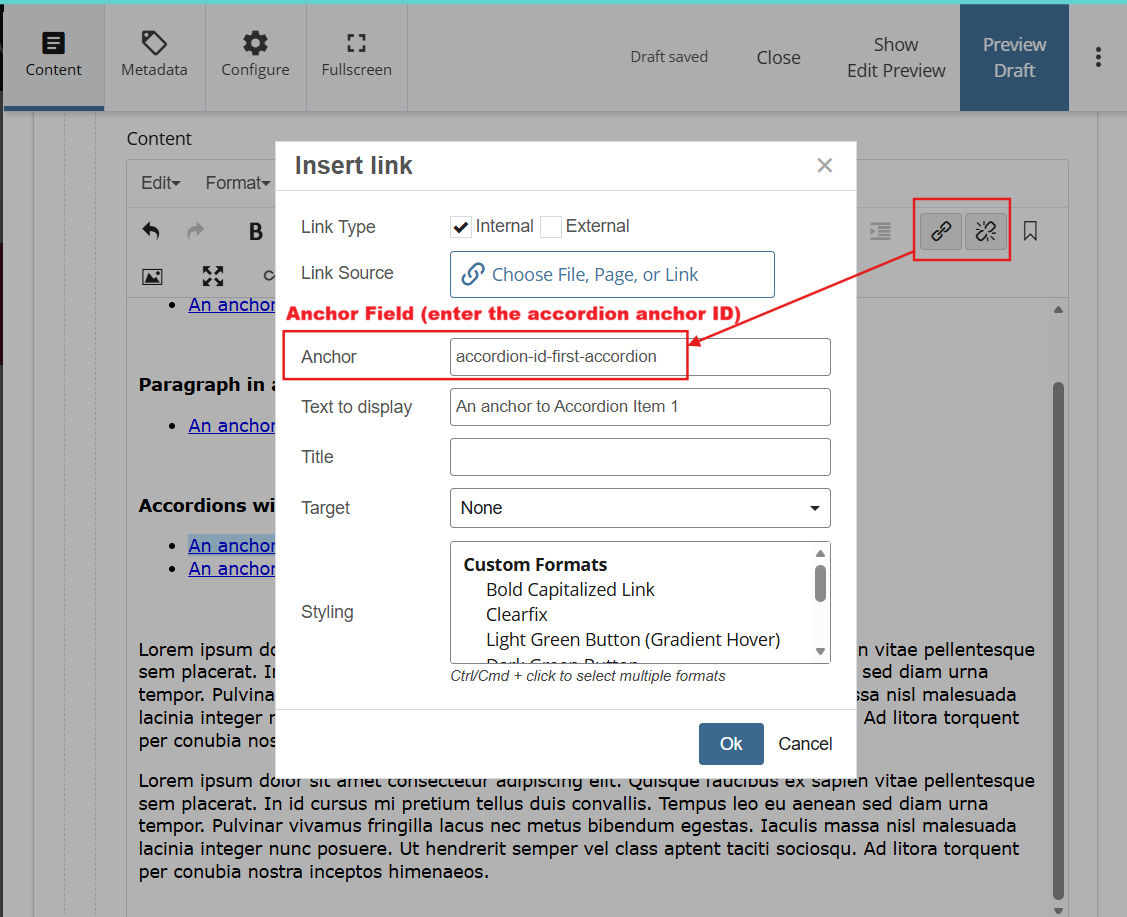
Adding the link
- Go to the content area where you want to place the link.
- Insert a hyperlink.
- In the Anchor field, enter the full accordion anchor ID.
- Example: accordion-id-first-accordion
Notes
- Do not use the old default format such as accordion-tracker--1-1.
- The previous system-generated default accordion anchor method is no longer used.
- Each accordion item should use a manually assigned custom Anchor ID.
- Always prepend accordion-id- before the custom Anchor ID to create the final working anchor link.
- If needed, confirm the final accordion anchor ID by viewing the published page URL in your web browser.