Curated Landing Listing Instructions
Introduction
The news module is not available by default. If a college or department want a news module on their website, please submit a ticket requesting the news module.
The module is available for use across the following template pages:
- College Department Page
- Division Department Page
- Content Subpage
- College Landing Page
- Division Landing Page
There are two types of news modules:
- PolyCentric News Feed: Displays news pulled directly from PolyCentric .
- A custom news feed: A department-managed news feed built internally for a specific website.
If you would like to learn how to create and set up a custom News Feed, visit the News Feed Instructions page.
- This tutorial covers how to select and apply a pre-configured news feed to a page.
- A single site can use multiple news feeds, depending on which feed is selected on each page.
Instructions
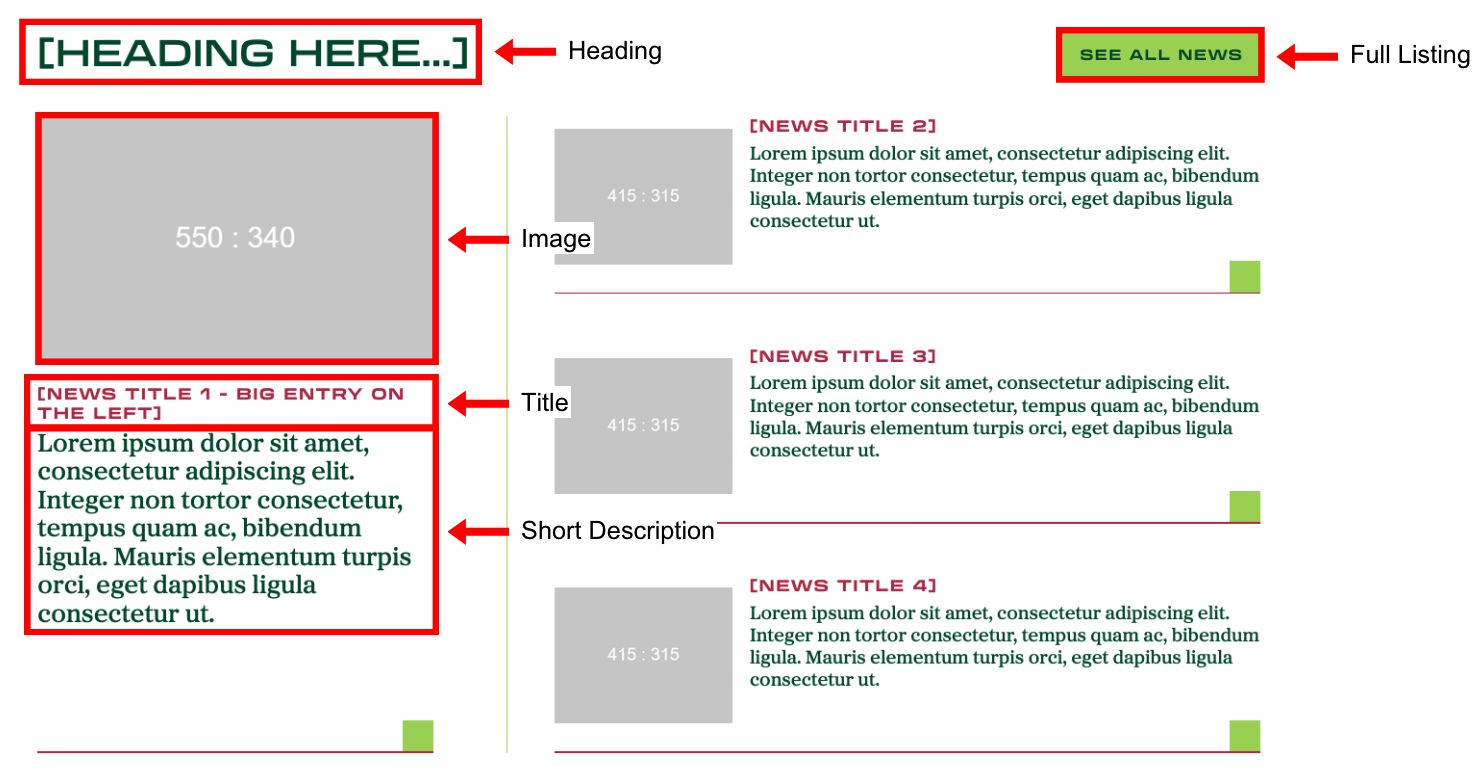
Page View
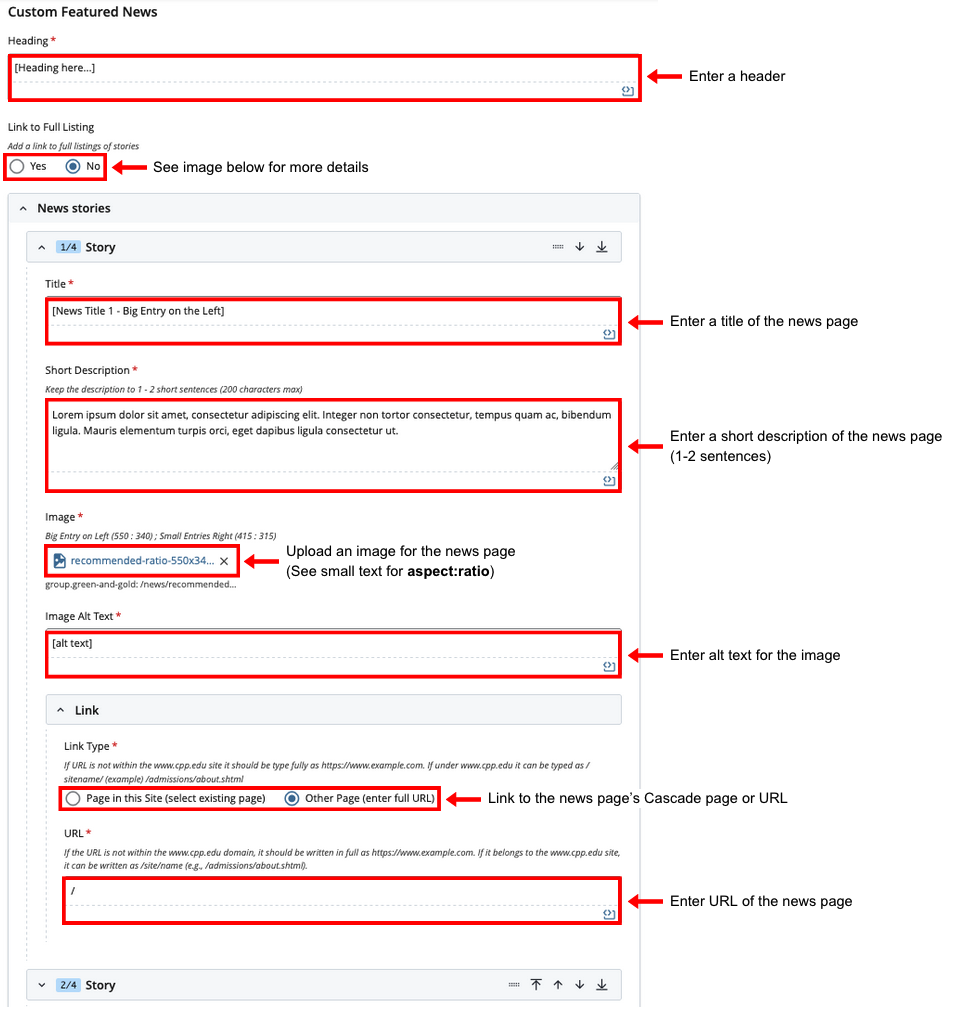
Cascade View
Instructions:
- Heading: Enter a header
- Link to Full Listing: See image and instructions below for more details
- News Stories
- Title: Enter a title for the news page
- Short Description: Enter a short description of the news page (1-2 sentences)
- Image: Upload an image for the news page (big entry on the left: 550 x 340, small entries right 415 x 315)
- Image Alt Text: Enter alt text for the image
- Link Type: Choose Page in the site for a news page on Cascade. Choose Other Page to use a URL.
- Page / URL: Select the Page or paste the URL
Full Listing Instructions
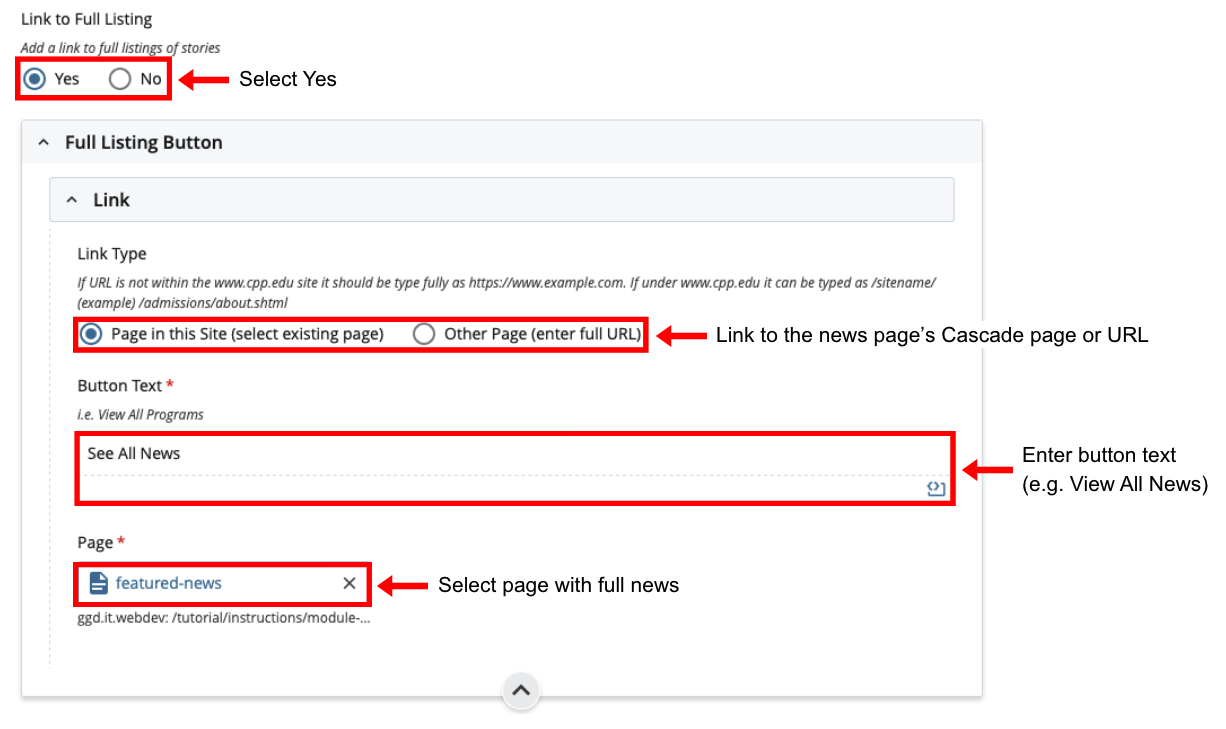
- Link to Full Listing: Select Yes
- Link Type: Choose Page in this Site or Other Page
- Button Text: Enter Button Text
- Page/URL: Select the news page from Cascade or enter an external URL