Social Media Feature Module Tutorial
Instructions
The module is available for use across the following template pages:
Page View
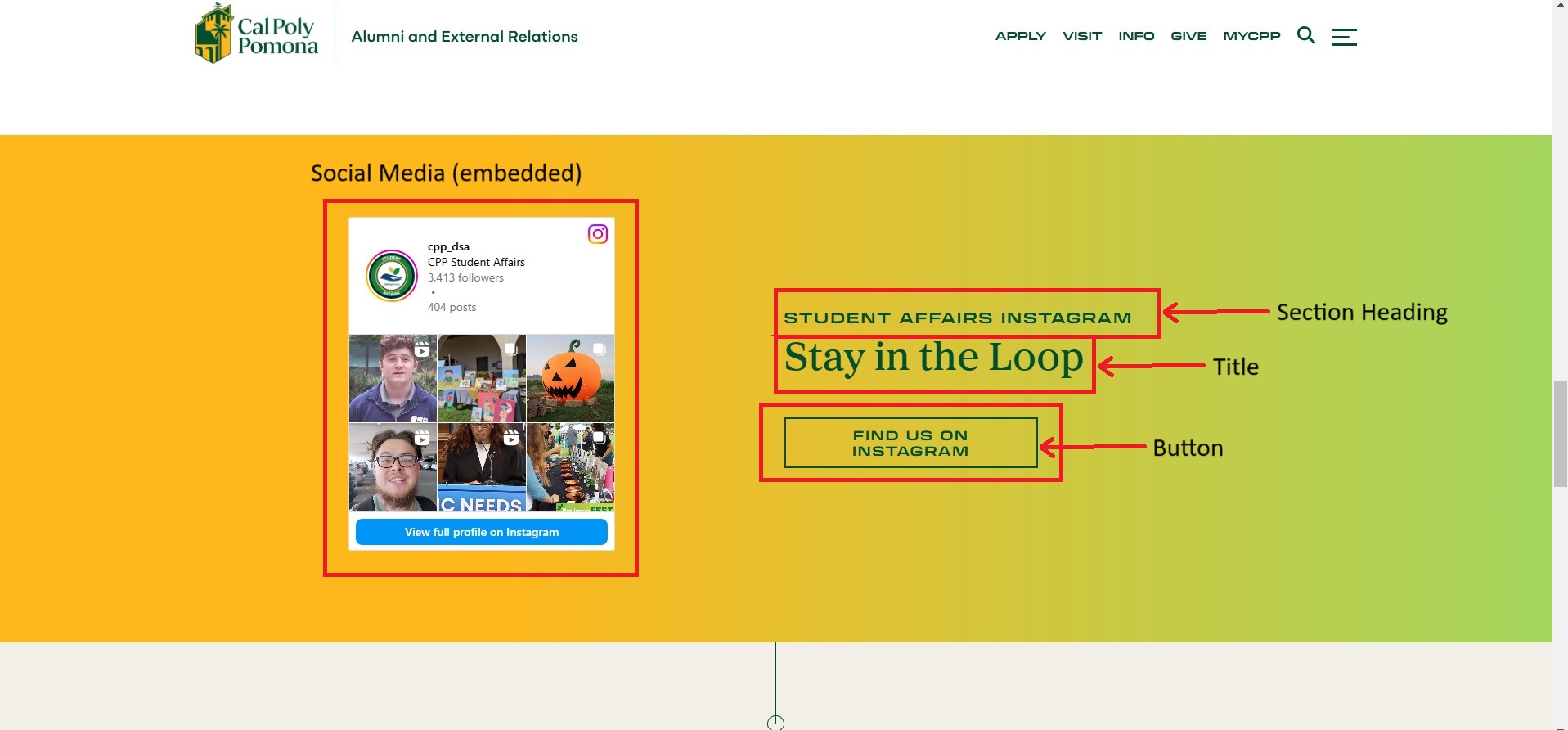
For this section, you will need:
- Social media embed code
- Section heading text
- Title text
- Button text and link
Cascade View
Instructions:
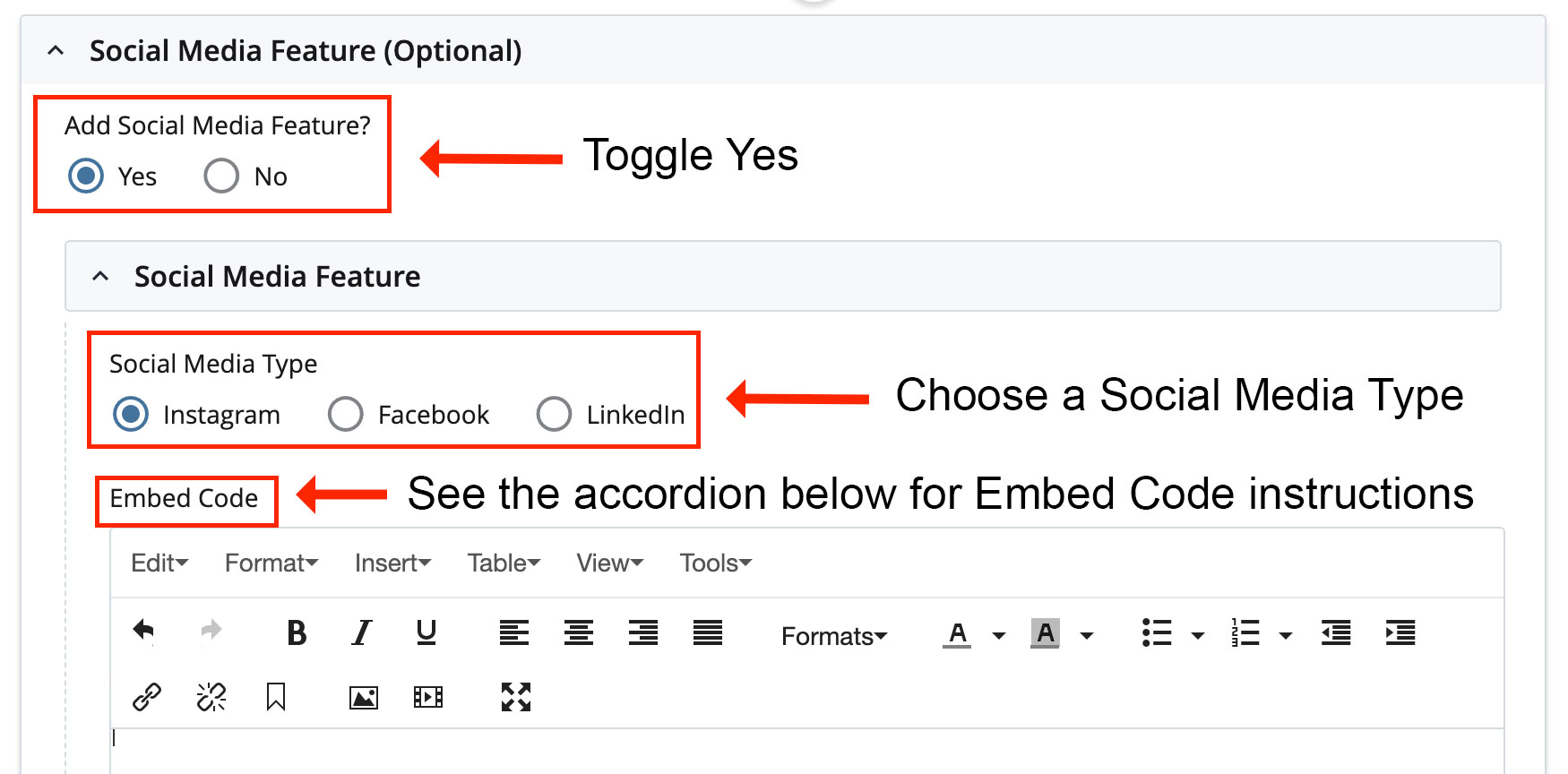
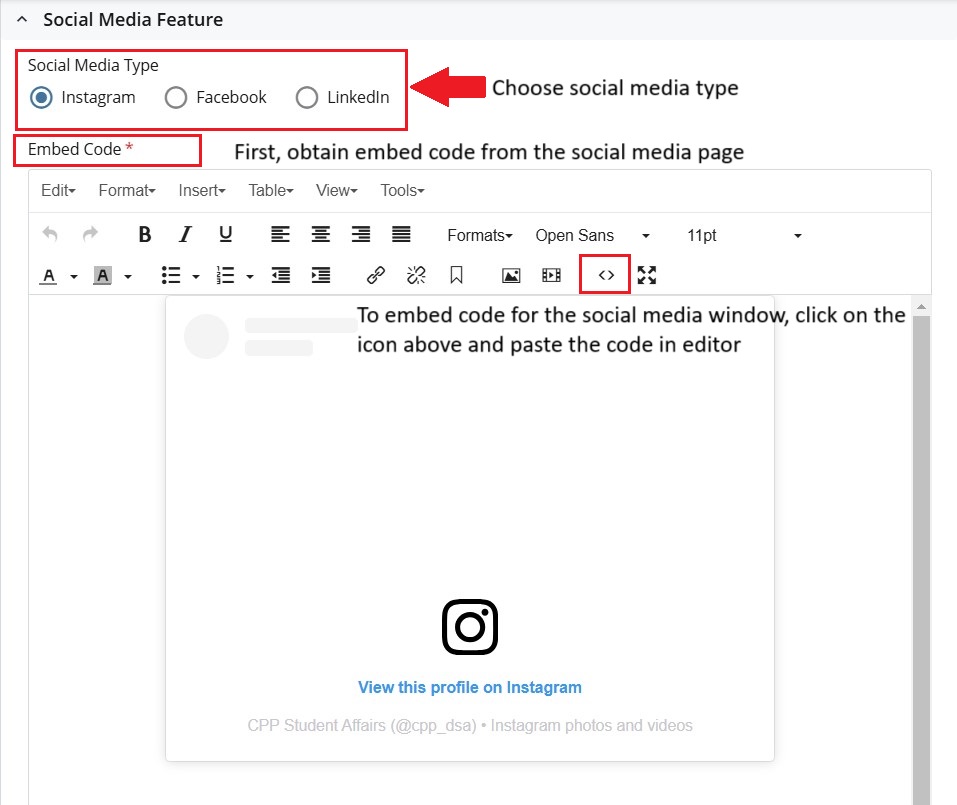
- Add Social Media Feature?: Toggle Yes
- Social Media Type: Choose a Social media Type
- Embed Code: Scroll down and see the accordion titled, "Social Media Embed Code" for instructions
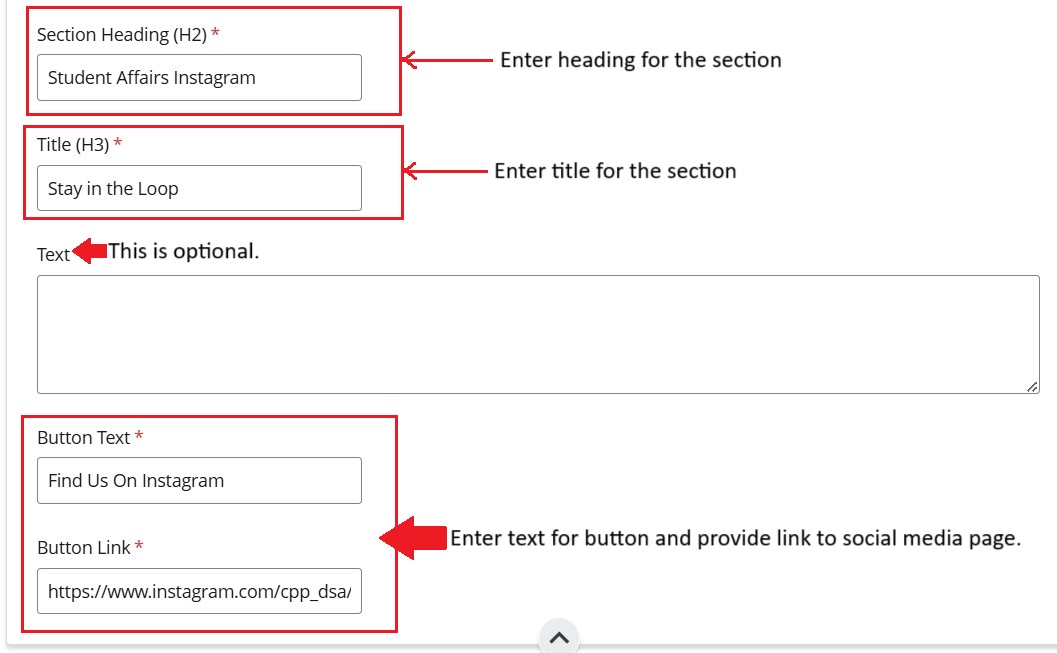
- Section Heading: Enter a heading for this section
- Title: Enter a Title for this section
- Text (Optional): Enter optional text for this section
- Button Text: Enter text for the button. Example: "Find Us On Instagram"
- Button Link: Enter link to social media page
Social Media Embed Code
Instructions on adding and editing the Social Media Embed Code.
Cascade Editor
Instructions for Adding Embed Code:
- Click Insert
- Next, click Media from the dropdown
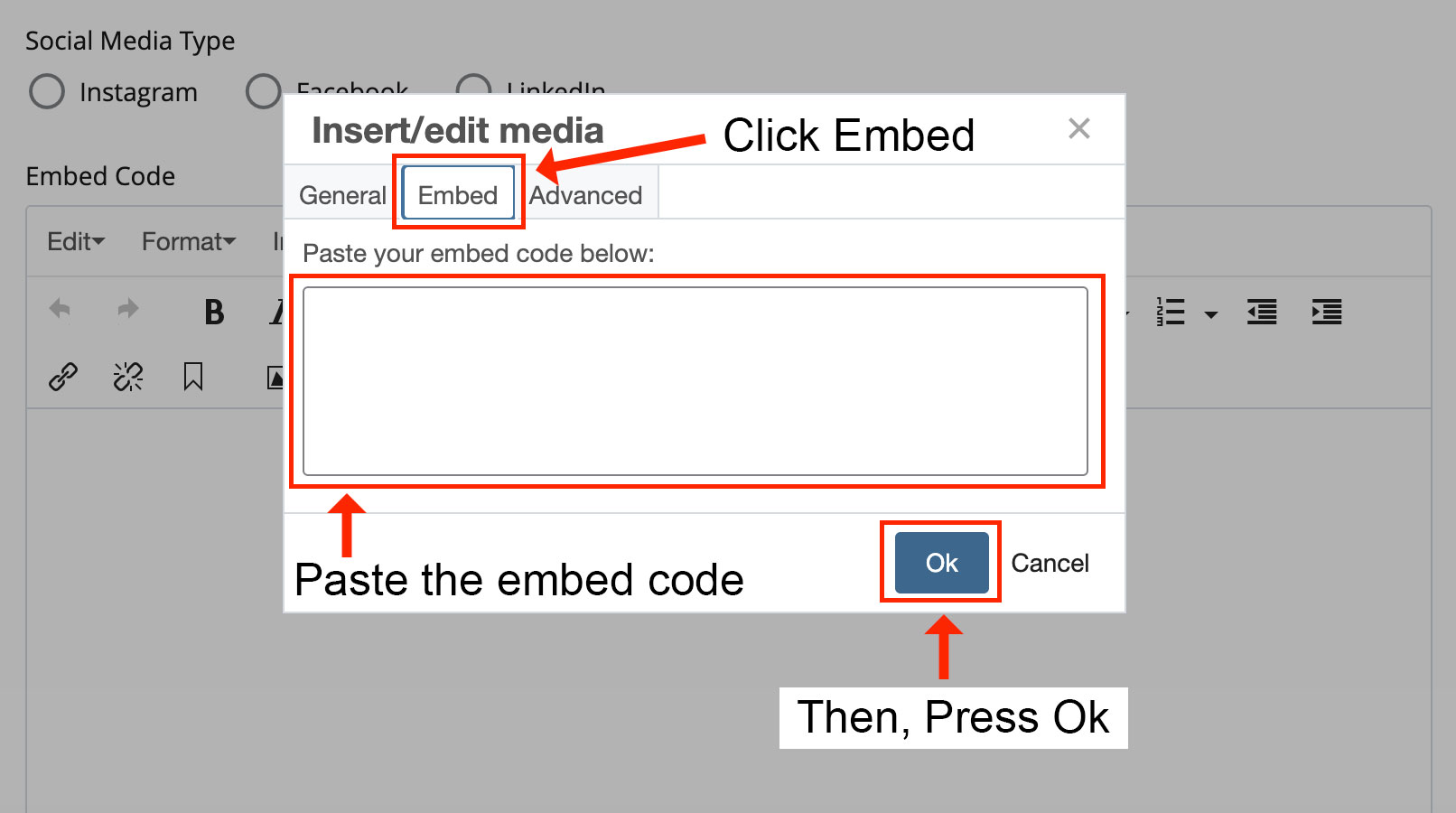
- In the Insert/Edit Media pop-up, click Embed.
- Paste the Social Media's Embed Code into the text field. Press Ok to confirm changes.
The embed code cannot be edited directly. Instead, the new code should be added after the original code is deleted.
Cascade Editor
Instructions for Editing Embed Code:
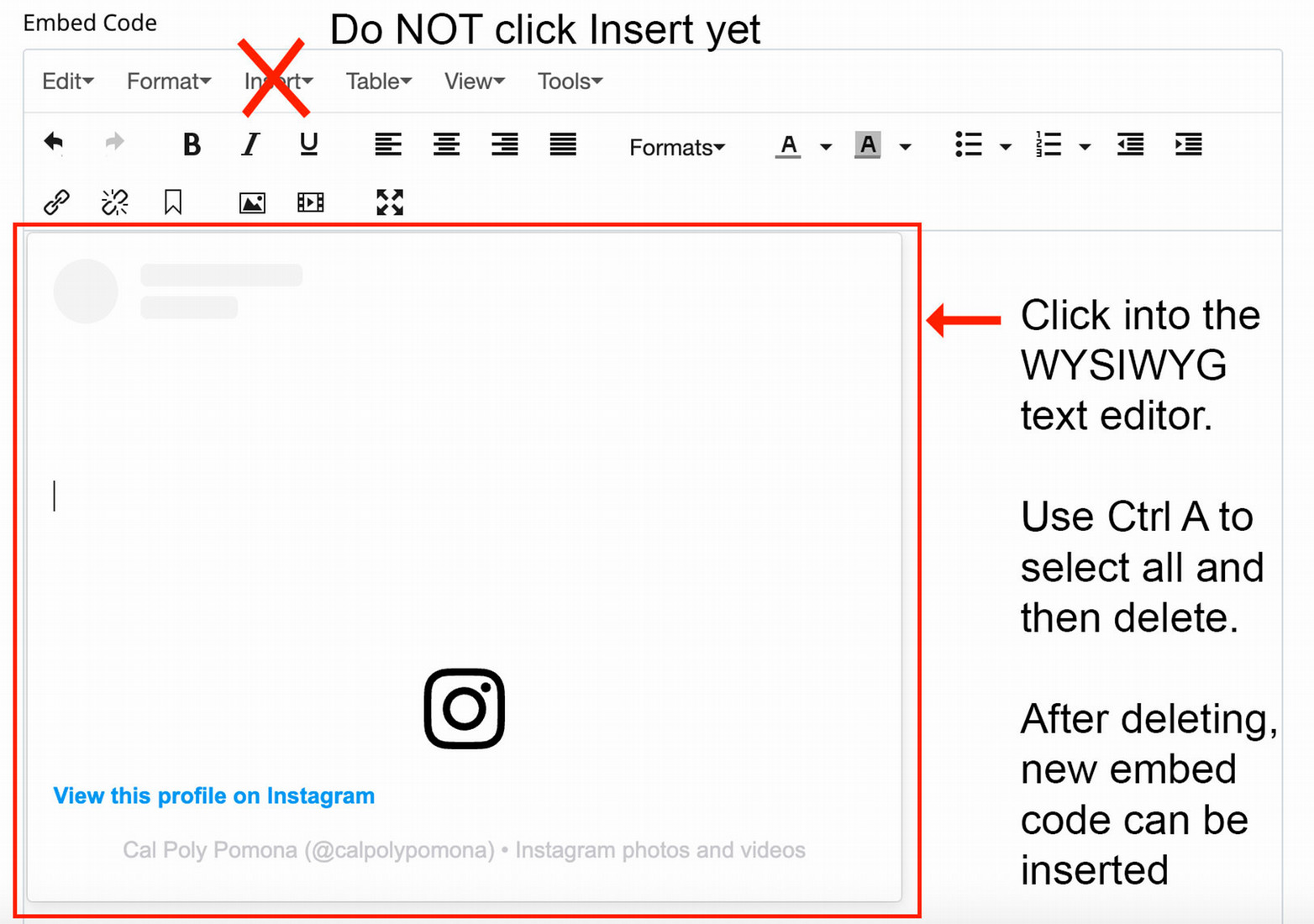
- Do NOT click Insert yet
- First, click into the WYSIWYG text editor.
- Press CTRL A to select all and then delete.
- After deleting, add the new embed code by following the "Inserting Embed Code" instructions.