PDFs


Why is PDF accessibility important?
PDFs (short for Portable Document Format) have become the number one way to share documents across platforms and devices while maintaining layout and design elements. In order to make this information available to all, it is important to create documents that are accessible to people of varying abilities. The April 24, 2024 ruling on Title II of the Americans with Disabilities Act (ADA) declares that online resources (websites, social media posts, documents, etc.) provided by state and local government entities must be accessible by WCAG 2.1 AA guidelines

What does an accessible PDF look like?
It may be difficult to determine whether a PDF is accessible or not just by looking at it. Many accessibility features do not have visible indicators at all! While certain attributes such as the color contrast of text with its background, the descriptiveness of link text, and the use of a document title can indicate whether the PDF is accessible or not, the best way to know is always to check it yourself.
Creating accessible PDFs starts with creating accessible Word and PowerPoint documents. While there are many accessibility barriers that can be remedied in Adobe Acrobat Pro (as shown in the remediation tutorial below), some barriers are more easily fixed in the original document. See CAFE's Accessible Word Guide and Accessible PowerPoint Guide to learn how to make your documents accessible. Also see Digitial Document Training Recording for a video on document accessibility.
Remediation Tutorial
Need to make sure your PDF is accessible? Follow our 4 step process to making PDFs accessible in Adobe Acrobat Pro.
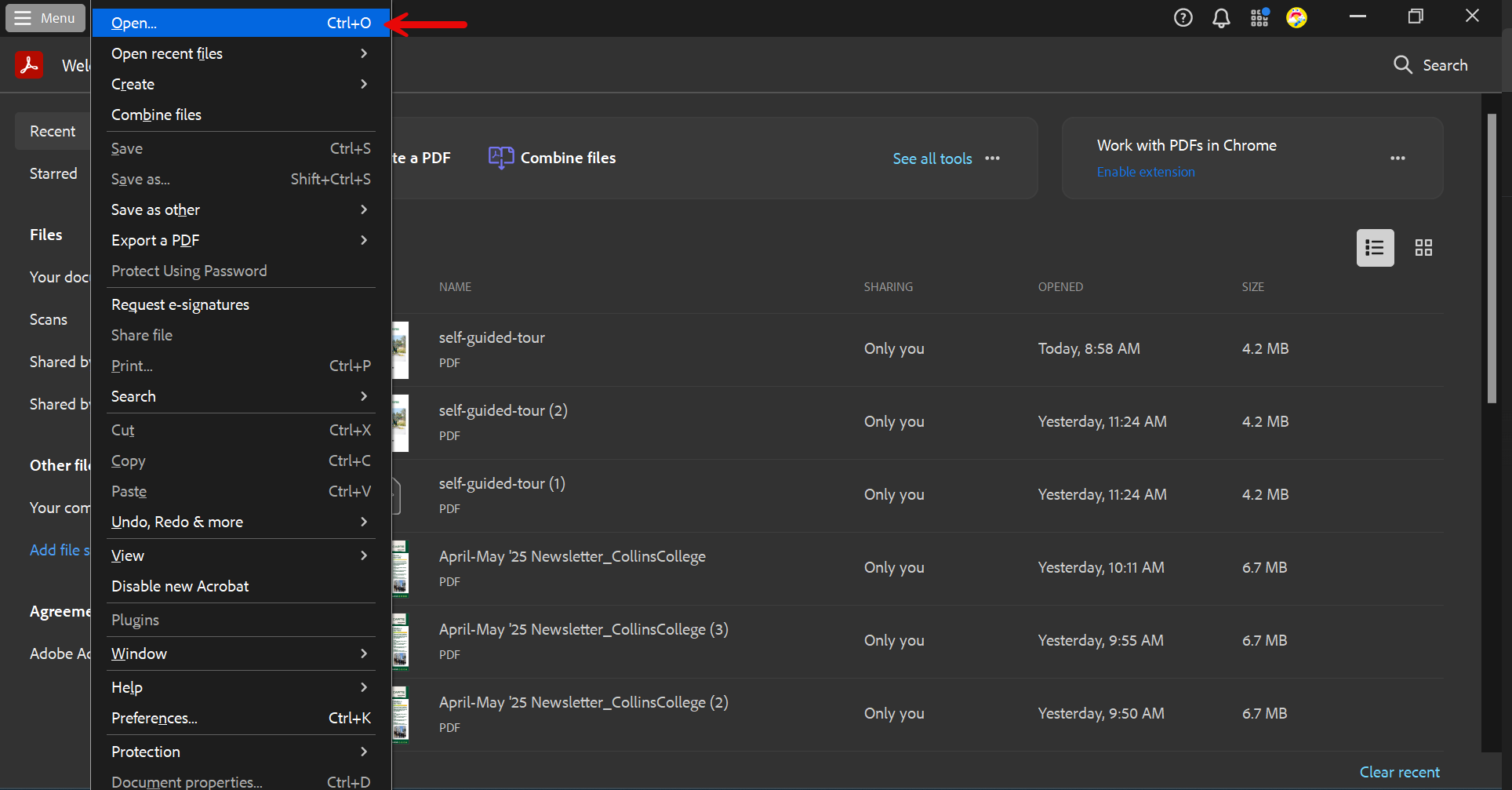
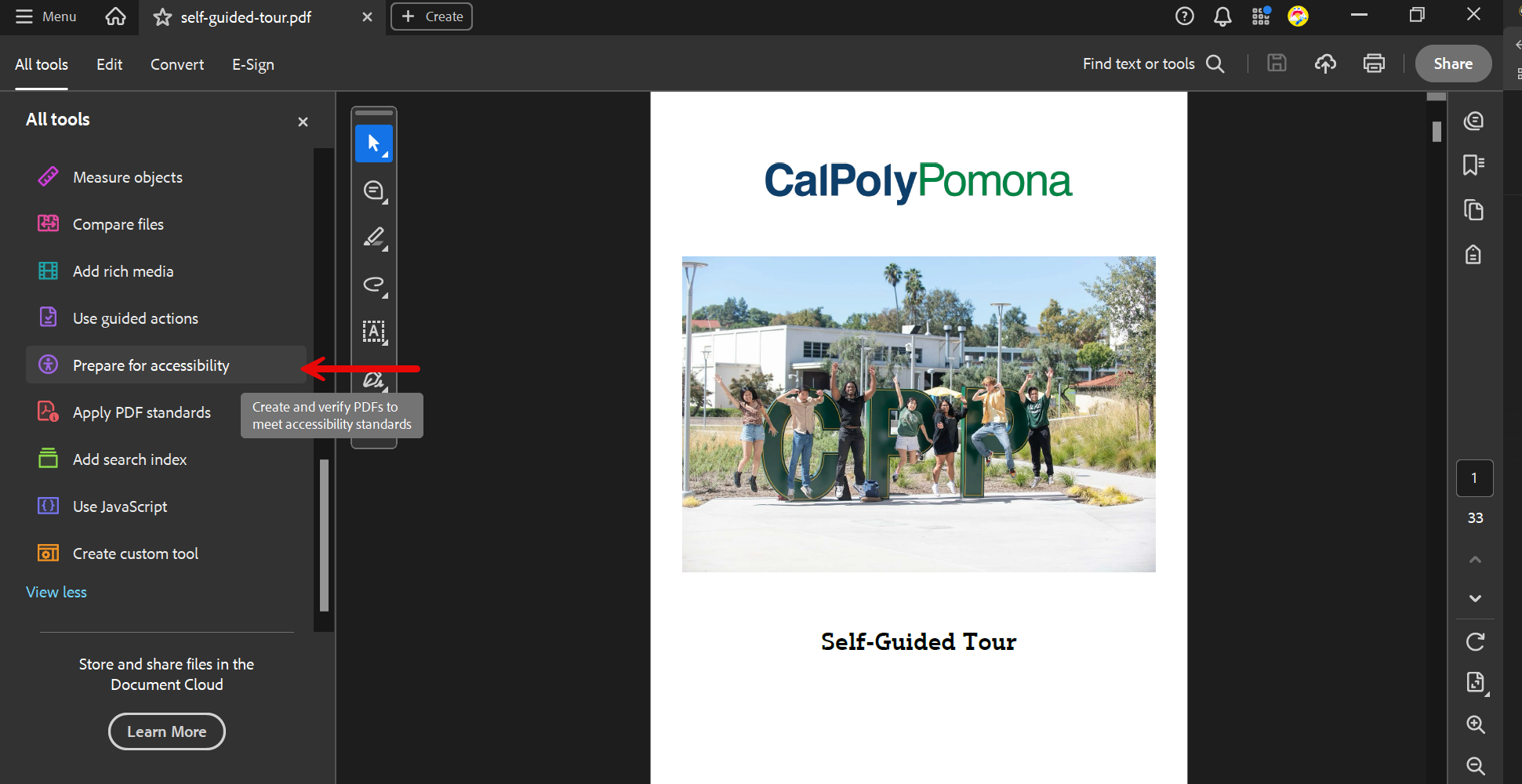
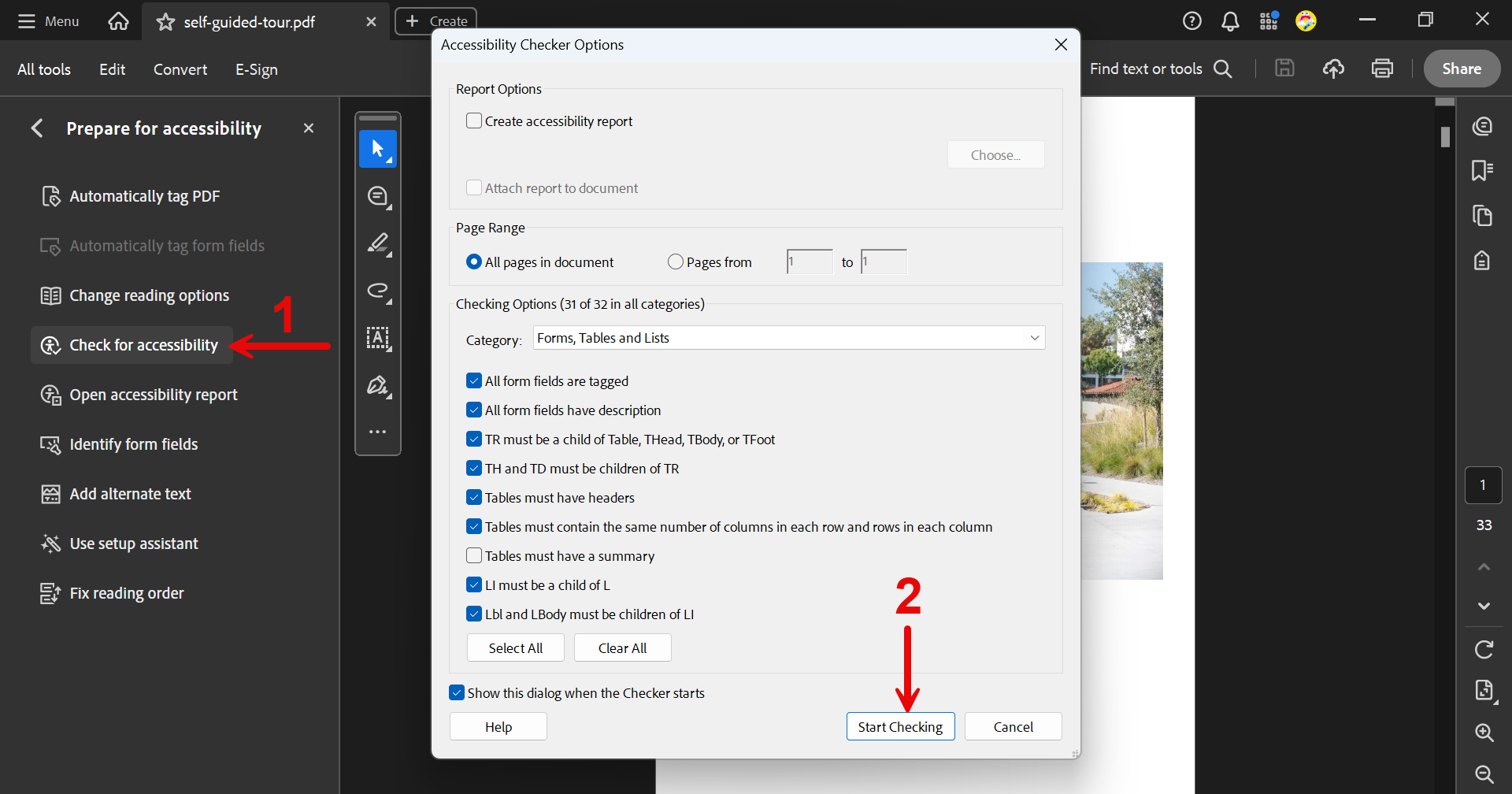
To get started, open your PDF by selecting Menu and Open, then select your document. In the left sidebar labeled "All tools", scroll down and select "Prepare for accessibility" (Note: You may need to click "View more"). Then, click "Check for accessibility" and "Start Checking" to start the accessibility tests.
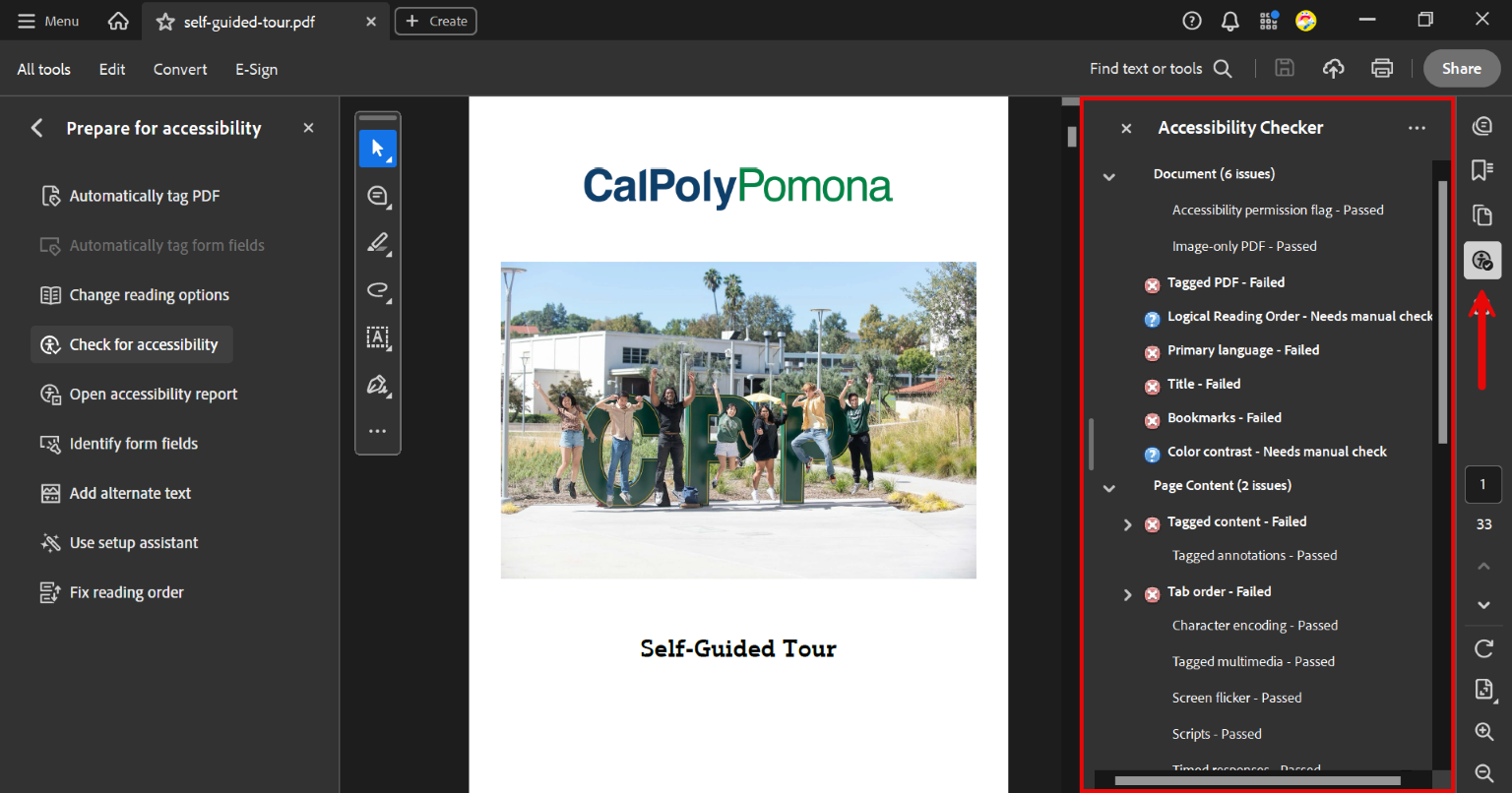
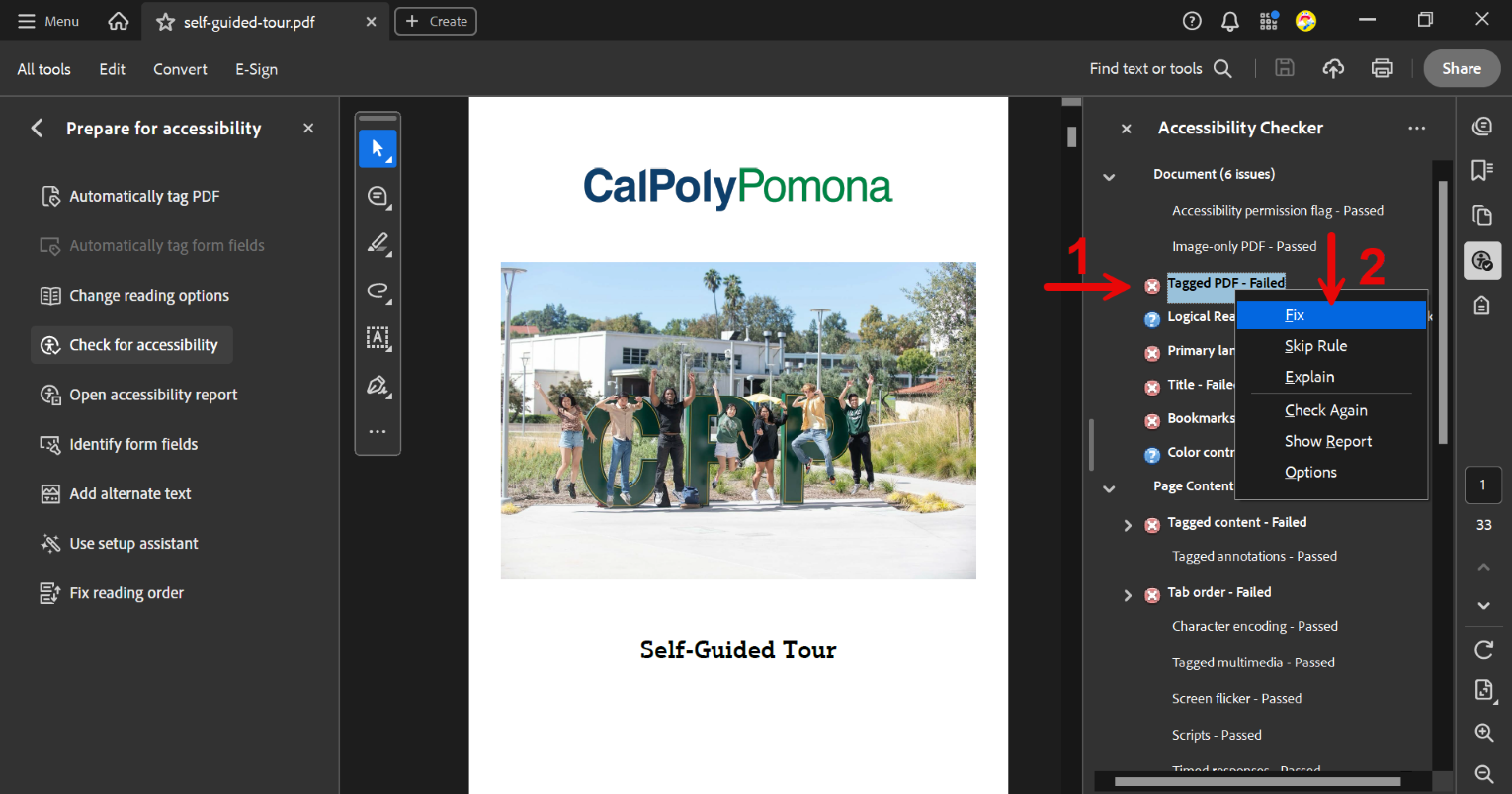
The "Accessibility Checker" pane should appear on the right sidebar. This is where you can view and fix any issues that the accessibility tests found. Take a minute to read through these issues and become familiar with them. Which tests passed? Which ones failed? You will likely see several tests that are marked "Needs manual check". These are aspects of accessibility that you will have to manually check on each page of the document, as automated tests cannot determine whether there are issues in these areas. If you are unsure of why any of the tests failed, you can right click on the test and select "Explain" to get an explanation of the accessibility barrier. A list of these explanations is also available on the Acrobat Pro PDF Accessibility Guide.
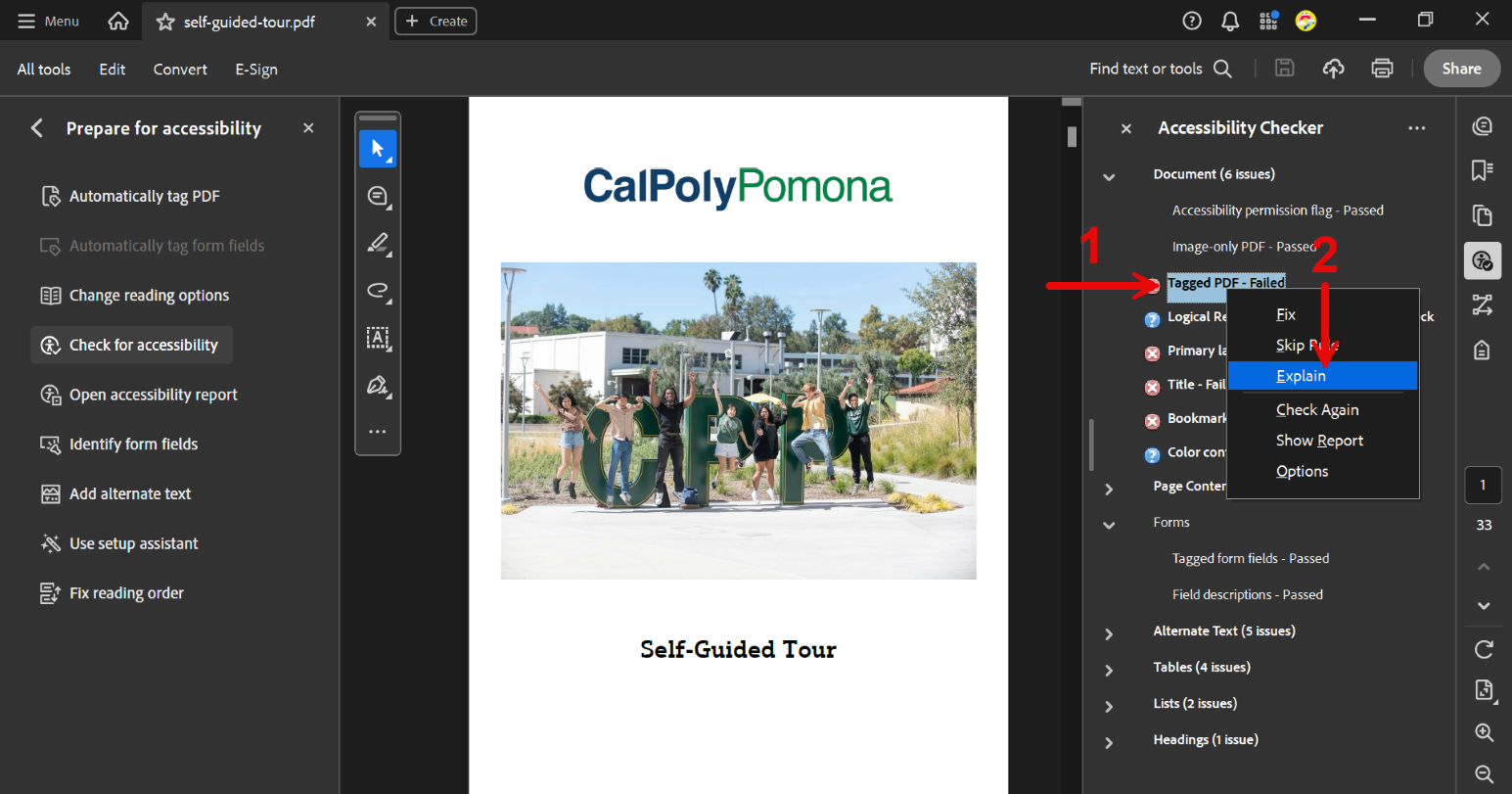
Now it is time to start remediating! To fix a barrier found by the accessibility checker, right click on the test and select "Fix". This will likely bring up an additional dialog (unique to each test) that will allow you to enter additional information to make the document accessible.
Alternatively, you can use the CSU PDF Accessibility Remediation Tool. This service is part of the ATI Remediation Framework. It uses AI to handle a significant amount of PDF accessibility work and can often produce a more usable document, although not fully compliant. Results vary based on the complexity of the file, and some documents will still need targeted adjustments.
Here’s how the automated PDF remediation process works:
- Upload a Document: Once you are logged in, simply upload PDF files for remediation.
- Remediation: The system utilizes AI to address numerous common accessibility issues, including missing tags, incorrect reading order, Alt Text, table structure, and other frequent barriers. The tool is designed to handle a large portion of the work but will not produce a fully accessible PDF. Many documents may still require refinement depending on layout and complexity.
- Download Your Accessible PDF: You will receive your processed PDF along with accessibility reports that outline what was addressed and what may still need review.
For additional guidance or manual remediation, please contact us at atiqa@cpp.edu.
The last step, always make sure to rerun the accessibility checker at the end to make sure all of the issues have been remediated! It is always possible that fixing an issue will create another one, so remember to double check once you think all the issues have been fixed!
Accessibility Tags
The accessibility tag pane shows the HTML tags associated with each part of your PDF. This pane correlates directly to how accessible your document is, as a PDF without tags will not be accessible at all!
While a document can be partially readable as long as it has tags, it is important to manually check your document's accessibility tags to ensure that they follow WCAG 2.1 best practices (Note: This is best done after you fix any issues found by the accessibility checker).
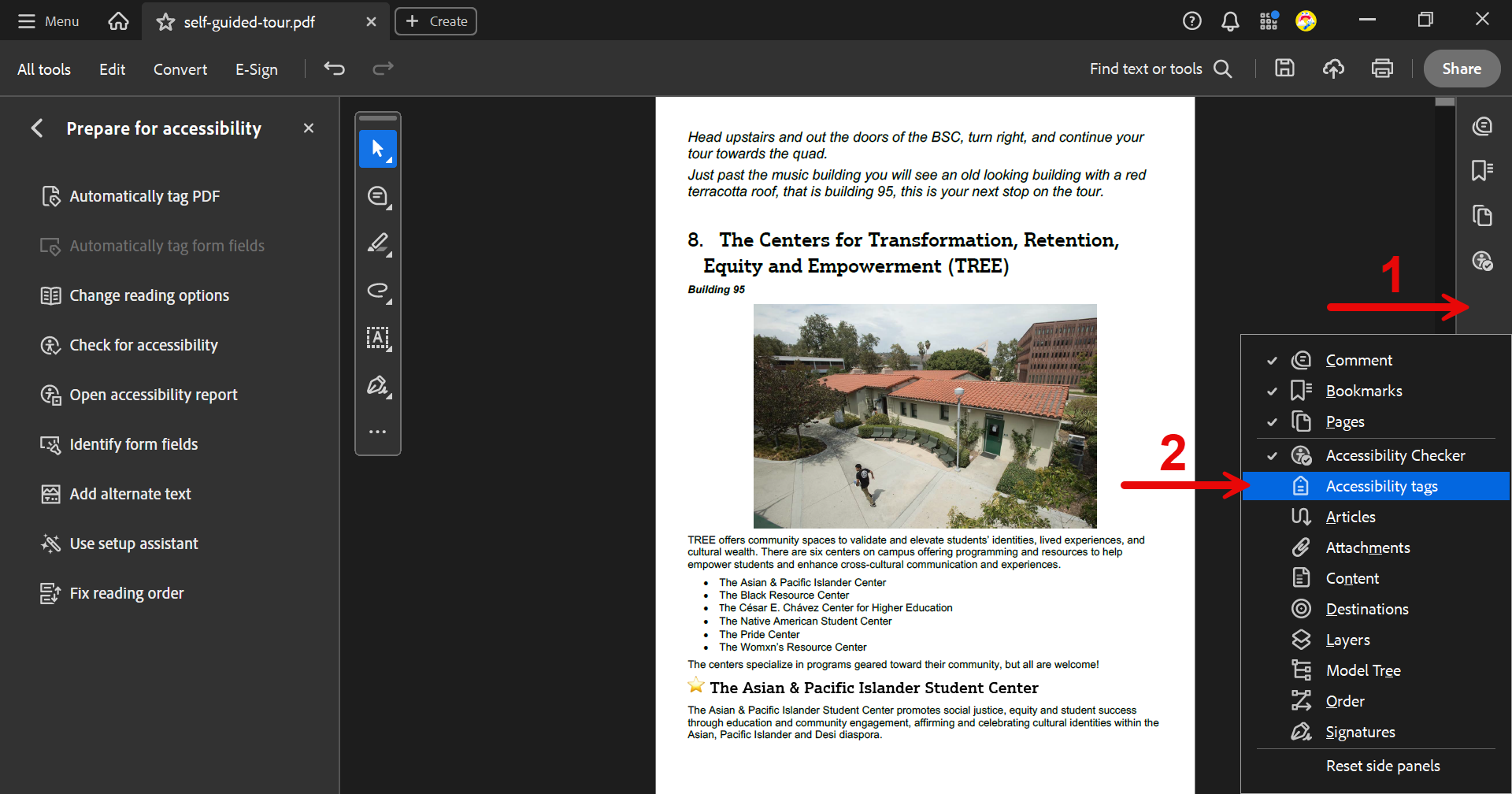
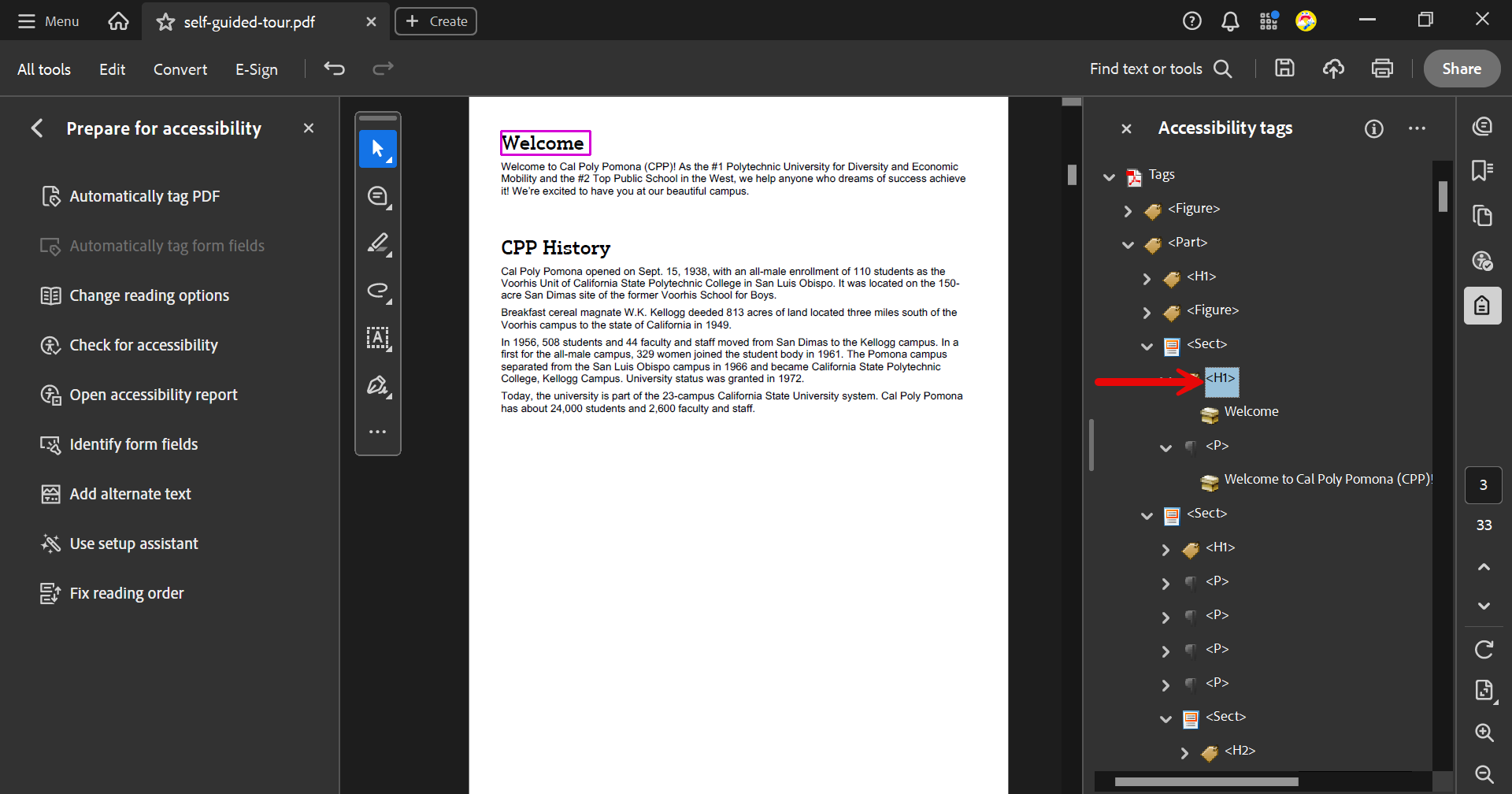
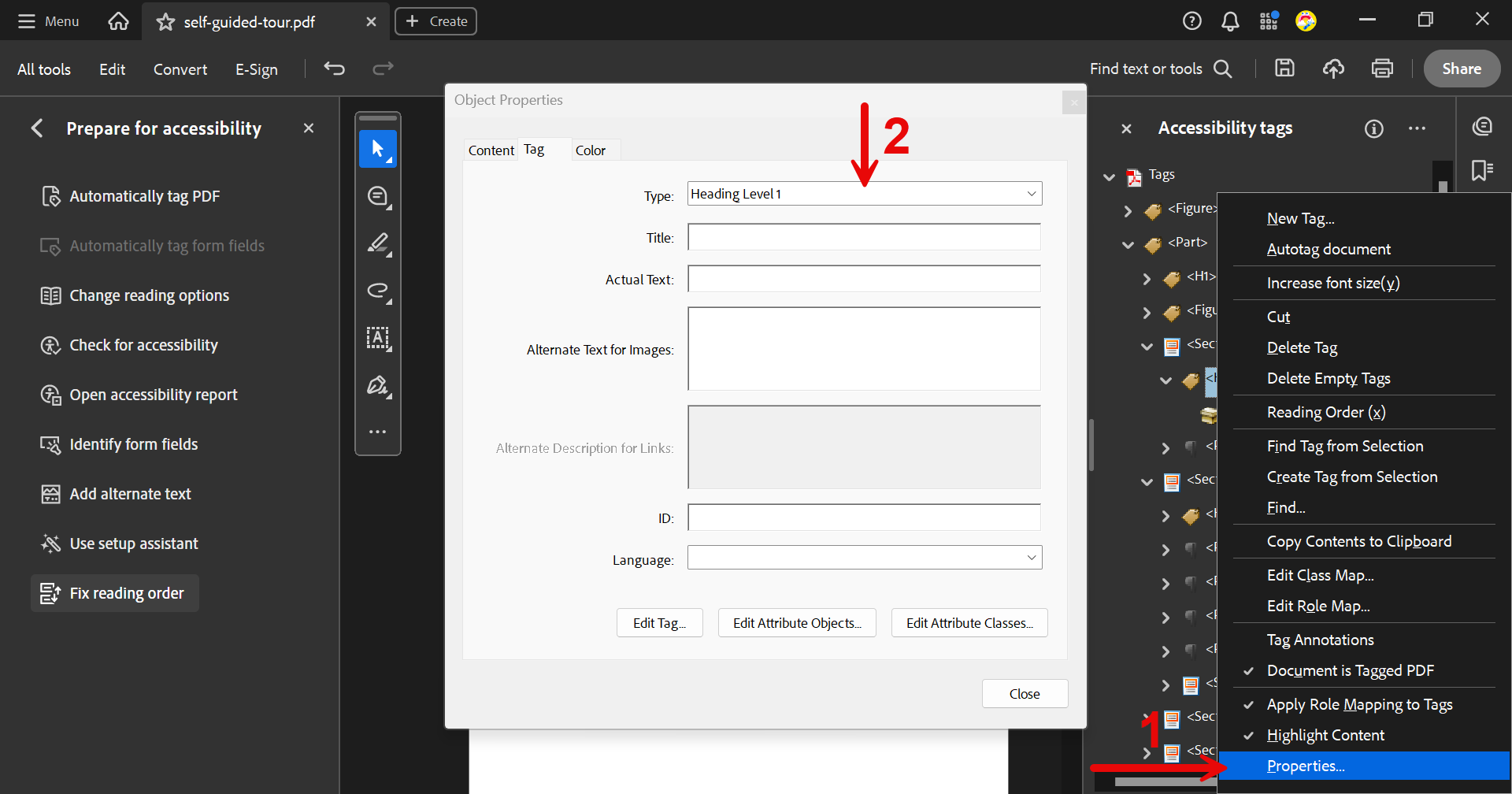
To view the accessibility tag pane, right click on the right sidebar and select "Accessibility tags". Then you will be able to fix any remaining issues, such as the appearance of multiple level one headings in this document.
To manually edit an element, right click on the HTML tag, select properties, and select the appropriate type from the dropdown menu (if you are confident in your knowledge of HTML tags, you can also select the HTML tag and enter the new tag name manually, e.g. changing H1 to H2, but only do this if you are absolutely sure you know the correct tag names).
Manual Checks
To check the reading order, open the Tags panel in the right sidebar by selecting Accessibility Tags if it is not already displayed. If the Accessibility Tags panel is already open, expand the tag tree. Expand each page’s tags and ensure that the order shown matches the logical reading order a sighted user would follow.
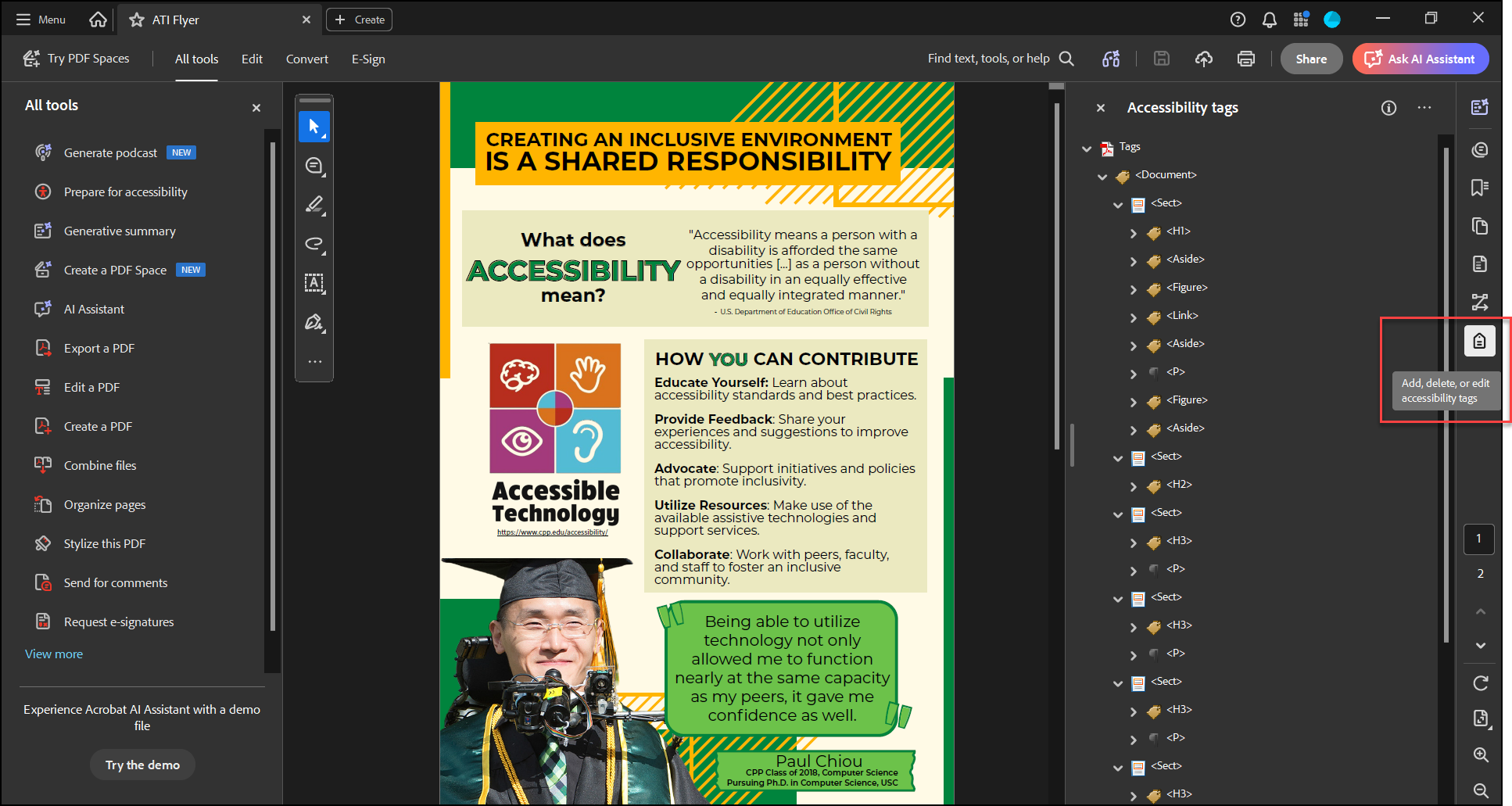
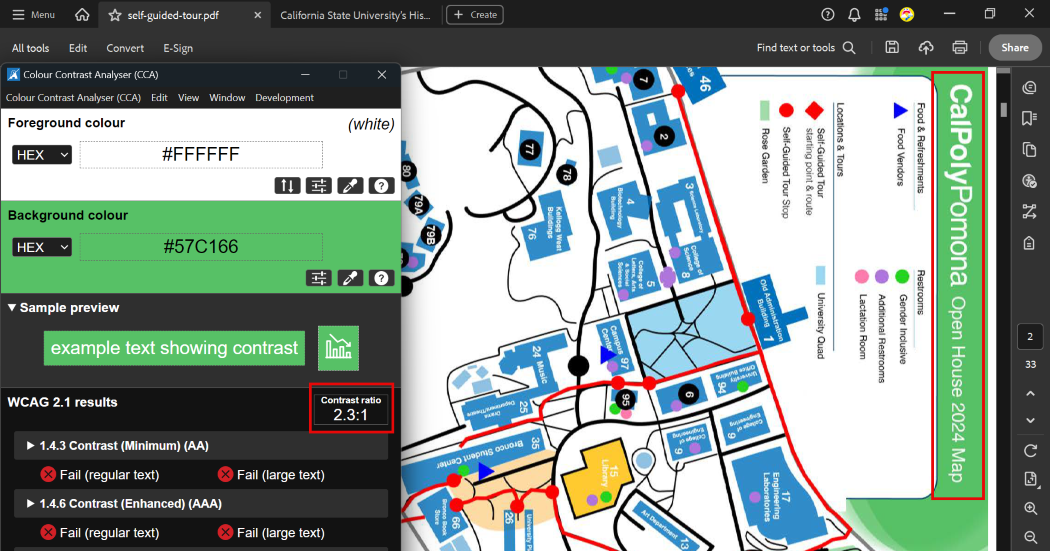
Arrow down through the tags in the Tags panel to review them in order. As you navigate, Acrobat will highlight the corresponding content in the document, providing a visual indicator of the current tag. Ensure the tags follow a logical visual reading order and that the tag structure accurately reflects the content and hierarchy of the document.
The reading order should follow a top-to-bottom, left-to-right sequence (unless the document’s language or layout requires a different order).
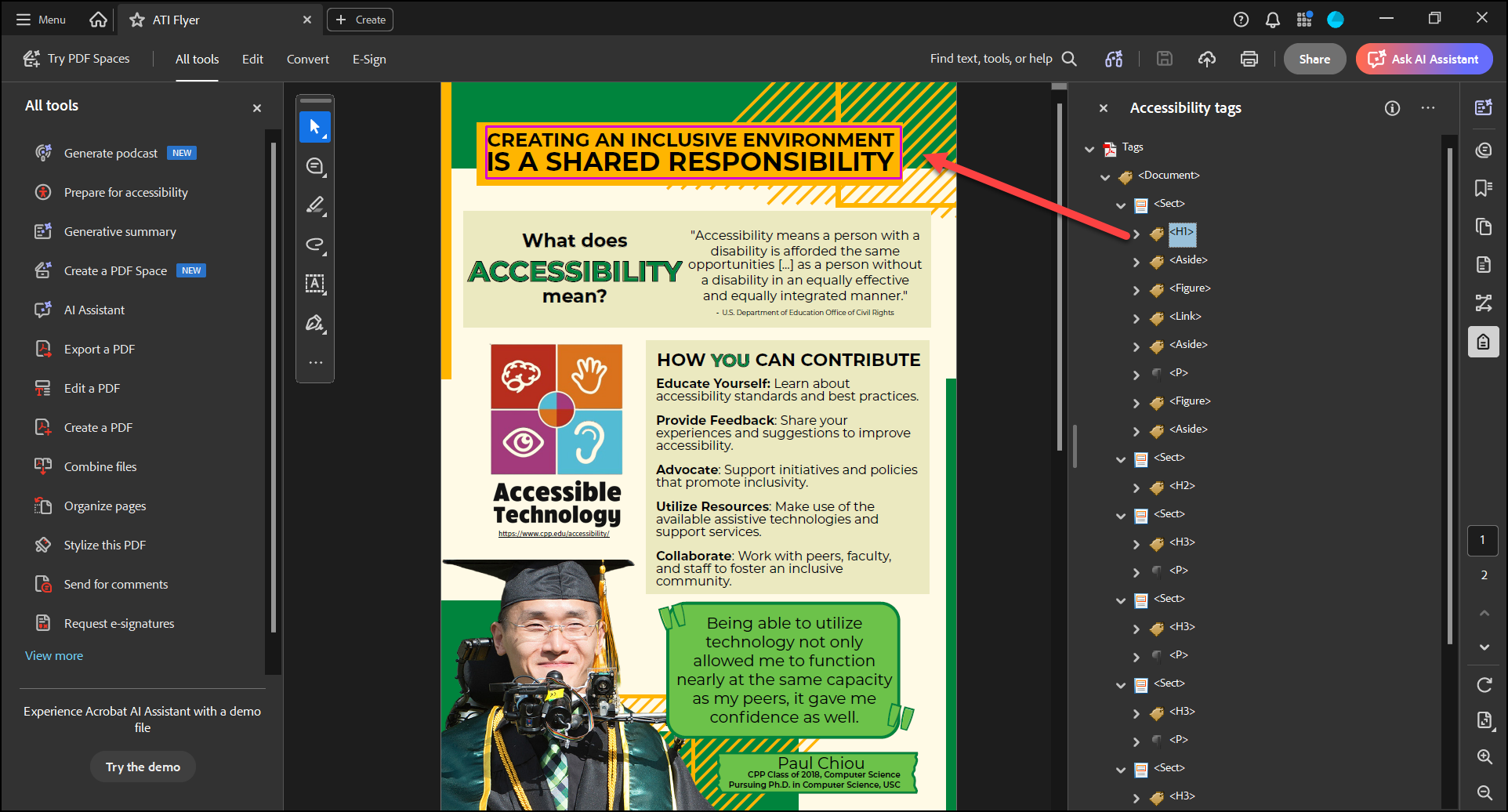
To ensure that your PDF meets WCAG 2.1 color contrast requirements, use a third-party tools such as Colour Contrast Analyser or the WebAIM: Contrast Checker to check that the contrast ratio of any text in your document is at least 4.5:1 for normal text and 3:1 for large text.
Common Issues
To fix automatically, go to All tools > Prepare for accessibility > Check for accessibility, ensure Document is tagged PDF is selected, and run the check. Acrobat will add tags automatically.
To tag manually:
- Recreate the PDF with tagging enabled in the source file. Ensure it is exported properly by using Save As then selecting file type PDF (*.pdf).
- Select All tools > Prepare for accessibility > Automatically tag PDF and review the Add Tags Report.
- Select All tools > Prepare for accessibility > Fix reading order to create or adjust tags.
- Open the Tags panel (View > Show/Hide > Side panels > Accessibility tags) and create or edit the tag tree manually.
- Assistive technology users rely on the reading order to parse information and content in the document in the correct sequence.
- Typically reading order should traverse the document from top to bottom and left to right.
- Document titles allow assistive technology users to quickly identify the document by its given name rather than an alternative such as the document file location.
- They should be human readable, not a file name!
To fix the title automatically, open the Accessibility Checker, select Title, then choose Fix from the Options menu. Enter the document title in the Description dialog box (deselect Leave As Is, if necessary).
To fix the title manually:
- Select the hamburger menu or File menu > Document Properties.
- In the Description tab, enter the document title in the Title field.
- Select OK.
- Document language allows screen readers to use the appropriate language when interpreting content in the document.
- Incorrect/missing document language can cause minor confusion to assistive technology users.
To fix the document language automatically, open the Accessibility Checker, ensure Document language is selected, and run the check. If it fails, select Fix from the Options menu and choose the appropriate language.
To fix the document language manually:
- Select the hamburger menu or File menu > Document Properties.
- In the dialog box, select the Advanced tab.
- In the Reading Options section, choose the appropriate language from the Language dropdown.
- Select OK.
- Headings provide document structure and facilitate keyboard navigation for users that rely on assistive technology. These users may experience difficulties navigating the document when heading levels are skipped.
- Heading levels adhere to a consistent hierarchy, following a logical progression. For example:
- H1>H2>… ✓ This is accessible
- H1>H3 × This is inaccessible
To fix headings automatically, open the Accessibility Checker, ensure Headings is selected, and run the check. If issues are found, review the results and follow the suggested fixes.
To fix headings manually:
- Open All tools > Prepare for accessibility > Fix reading order.
- Select the heading text on the page.
- In the Reading Order window, choose the appropriate heading level (e.g., Heading 1, Heading 2, etc.).
- Repeat for all headings in the document.
- Locate the heading tag (e.g., <H1>, <H2>).
- Right-click to change the tag type if needed.
- Ensure heading levels follow a logical hierarchy (e.g., H1 > H2 > H3).
- Do not use link text that is:
- Not descriptive of the destination
- Ex: "Learn more" is not descriptive.
- Ex: "Learn more at CPP's Accessibility Technology Commitment webpage"
- Raw URL text as it is difficult for users of all abilities to determine the destination of the link.
- Not descriptive of the destination
- Users who rely on assistive technology are unable to perceive information in an image that does not have alt text.
To fix alternate text automatically, open the Accessibility Checker, ensure Figures alternate text is selected, and run the check. If issues are found, select Fix from the Options menu and enter appropriate alternate text for each image.
To fix alternate text manually:
- Open All tools > Prepare for accessibility.
- Select Set alternate text.
- The Set Alternate Text dialog will display each image.
- Enter meaningful alternate text that describes the image’s purpose or content.
- If the image is decorative and conveys no meaningful information, mark it as Decorative.
- Select Save & Close when finished.
- Elements that convey information must maintain a color contrast of 4.5:1 between regular text and background or a ratio of 3:1 for large text and background.
- Good color contrast makes the document easier to read for users of all abilities.
- Unlabeled forms cause severe difficulties for users who rely on assistive technology to navigate documents.
- Without the context for the form, users will not know what information they are supposed to enter or may not even be able to enter anything at all!