Technology News and Service Notices for the week of May 25, 2026
Network Maintenance
 Information Technology will perform network maintenance Thursday, May 28, 2026, from 10 p.m. to midnight.
What to Expect: You may experience brief on-campus network interruptions during this maintenance window and may also need to log in again to some CPP services. Campus phones will not be impacted.
Zoom Web User Interface Update This Friday
 Summary: Zoom’s web portal and application user interfaces will receive an update on Friday, May 29, 2026.
What does this mean for me? These changes impact the user interface experience and non-meeting related functionality. Zoom believes their design updates will improve productivity by reducing friction when navigating their applications.
Briefly, this is what you can expect:
- Web Enhancements: A redesigned home tab with shortcuts to meetings and menu refinements to reduce clutter. CPP’s Zoom lading page will have an updated appearance.
- Desktop App Enhancements: The desktop app receives a dedicated AI Companion tab and accessibility improvements.
- Mobile App Enhancements: The mobile app also gains unified AI Companion controls, allowing hosts to manage summaries, questions, and transcripts from a single panel. The app will also benefit from improved navigation, and easier access to video & effects settings.
- Zoom Chat Enhancements: The chat interface across all versions offers faster, more responsive communication, enabling users to share images, videos, and rich text messages.
Most changes will be applied automatically with your update to Zoom Workplace version 7. Updated documentation and support are available through the Zoom Support Center
Planned Maintenance Times
- Thursdays, 9:30 p.m. to 12:00 a.m., midnight.
- Sundays, 5:00 a.m. to 8:00 a.m.
- IT Service Status
During these times, online services may be briefly unavailable without advance notice.
Phishing Fraud & Scams
Phishing (fraudulent emails, texts, and messages) is a common and ongoing threat that affects all organizations, including our campus. Attackers often send short, urgent messages during busy times to make scams seem legitimate and harder to spot.
Current scams include short emails and/or text messages with unrecognizable links related to employment, cancelled accounts, missed payments, etc.
Prevention Tips
- Do not click links in unexpected or unsolicited emails or text messages. Verify the legitimacy of web sites and email addresses before acting. Verify sender or information using official known contact methods outside of what is provided within an email or text.
- Be suspicious of requests for your personal information. Do not share personal information in response to any unexpected email, text or phone call.
- Pause before you pay. Scammers love to provide a sense of urgency to trick us into paying. Never wire money directly. Don’t provide payment using gift cards. Banks will not contact you via email to verify your account information.
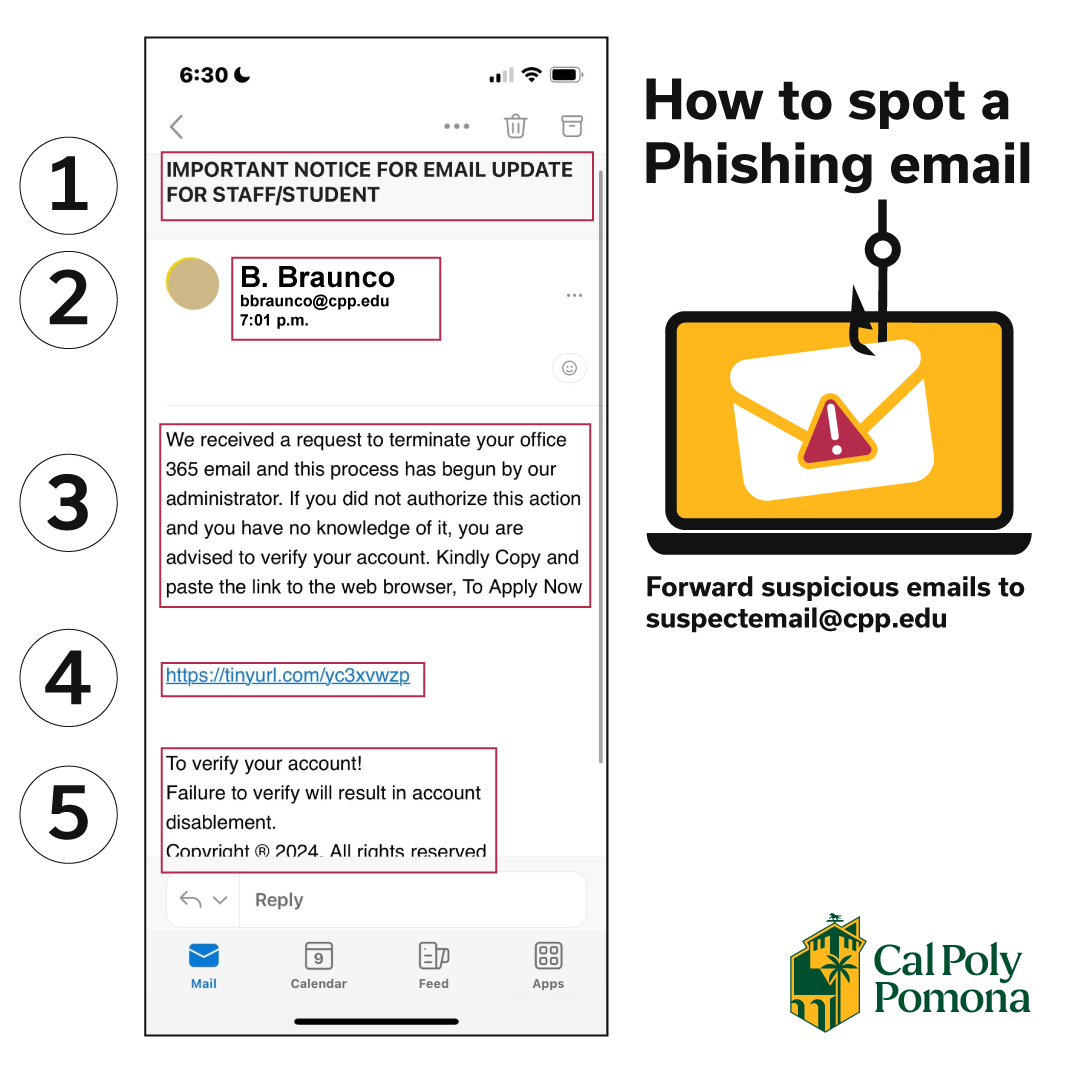 Think Before You Click:
- If you receive a suspicious email, forward it to suspectemail@cpp.edu and/or identify it as phishing/spam using Microsoft Outlook (web, mobile or desktop)
- Never provide your BroncoPassword on ANY web form, email or text. Only you should have access to your account.
- Important: CPP staff and faculty will NEVER ask you for your Bronco credentials, password, or MFA authorization. Any email, even when from a cpp.edu address, asking for this information is likely a phishing attempt.
- Never approve a Duo Multi-Factor Authentication (MFA) prompt you didn’t initiate or don’t recognize.
- Important: CPP staff and faculty will NEVER ask you to authorize MFA access or verify your account. Any email or text message, even when from a cpp.edu address, asking for your login credentials or to authorize MFA is likely a phishing attempt.
- Verify the sender. Verify the sender without using the links or phone numbers within the email. Use an Internet search of the company name, department, and/or sender. Use Bronco411 to verify the CPP sender's identity and if the request is appropriate.
If You Feel at Risk,
- Change your BroncoPassword immediately within MyCPP or eHelp.
- If you provided personal identifying information or financial information, contact your financial institutions.
- Verify there are no fraudulent changes to your financial accounts, including CPP banking information.
- Contact the CPP IT Service Desk or campus Information Security Officer (ciso@cpp.edu)
- Contact University Police or your local police department if you are a victim of a crime.
To Learn More
Required OS Upgrades for IT-Managed Computers
All IT-managed computers must be upgraded to the latest supported operating system before Tuesday, May 26, 2026. If not completed by the deadline, upgrades will be performed automatically.
What does this mean for me?
Faculty and staff should launch the Software Center app and complete updates at a convenient time. Allow one to two hours for the process.
Windows 11 25H2
Faculty and staff using Windows 11 are encouraged to upgrade before Tuesday, May 26, 2026 via Windows Update.
macOS 26 Tahoe
Faculty and staff using macOS are encouraged to upgrade via Software Center before Tuesday, May 26, 2026.
OneDrive Sync on IT-Managed Computers
All Cal Poly Pomona faculty and staff IT-managed computers are configured with Microsoft OneDrive to provide secure cloud storage for university-related files.
Files saved in your OneDrive – Cal Poly Pomona folder automatically sync to your CPP OneDrive account in the cloud. This includes files stored on your Desktop and in your Documents folder.
OneDrive allows you to access your university files from anywhere while supporting campus business continuity and disaster recovery requirements.
CPP Safe App
Fast alerts. Smart response. CPP Safe.
Download the CPP Safe app to receive emergency alerts and access campus safety resources. Learn more.
Contacting the IT Service Desk
If you have questions regarding these notices, contact the IT Service Desk.
Cal Poly Pomona IT Service Desk
IT Service Desk Contact Information
Submit a Ticket
IT Services Status