Cal Employee Connect (CEC)
Cal Employee Connect (CEC)
Information
Here are the step-by-step instructions for registering for Cal Employee Connect (CEC):
- Prepare Recent Paycheck: Before beginning the registration process, ensure you have a recent pay stub with you, as information from this document will be requested during registration. If you do not have a recent pay stub handy, you may contact Payroll Services for assistance in retrieving the necessary information. Please note that you must receive at least one physical paycheck before registering.
- Go to the Website: Visit the Cal Employee Connect website at https://connect.sco.ca.gov/ and click on "Register" to initiate the registration process. Prepare to provide your social security number, date of birth, and details from a recent State of California earnings statement (also known as a pay stub).
- Read Getting Started: After accessing the website, read through the information provided under "Getting Started," then click on "Continue" to proceed.
- Accept User Agreement: Review the User Agreement, and if you agree to the terms, click on "Accept" to move forward.
- Enter Department and Agency Code: Input your Department and Agency Code.
Department: CSU, Pomona
Agency Code: 196 - Provide Personal and Earnings Statement Information: Fill in your Social Security Number, Date of Birth, Earnings Statement Number, and Total Deductions. Note: the earnings statement number is also known as the warrant/check number. The total deductions is the difference between the gross pay and net pay, plus FlexCash (if applicable). Once completed, click "Submit" to proceed.
- Create Login Details: Generate your login credentials by entering your personal email address and selecting a preferred username with no spaces. Then, create a password that meets the specified criteria: at least eight characters long, including one special character, one uppercase letter, and one lowercase letter.
- Verify Email Address: Verify your email address by following the instructions provided. Once verified, click "Submit" to proceed.
- Enter Email Verification Code: Check your email inbox for a unique code, which is valid for 30 minutes from the time the email was sent. Enter this code in the designated "Email Verification Code" box.
- Receive User ID: Upon successful verification, you will receive an email containing your user ID. This email confirms that your registration is complete, and you may now log into Cal Employee Connect using your newly created credentials.
Following these steps should enable you to successfully register for Cal Employee Connect and gain access to its features.
Once you register for CEC, you can log in using most internet-connected devices, including your mobile phone.
-
Go to the Cal Employee Connect website and click Login.
-
Enter your user name and password, then click Submit.
If you have trouble logging in or forget your CEC User Name, try the forgot username feature. If you still need assistance, please email connecthelp@sco.ca.gov.
For more information, view the Cal Employee Connect Guide (PDF).
Direct Deposit
Direct deposit is an electronic payment method where funds are transferred directly into a recipient's bank account, bypassing the need for paper checks. Recipients authorize employers to deposit payments into their account, providing convenience, security, and timeliness. It eliminates the risk of lost or stolen checks, offers immediate access to funds, and streamlines payment processes.
-
Avoidance of long lines at your financial institution on pay day.
-
Convenient and consistent deposit of earnings in spite of business absences, vacations or illnesses.
-
Security in the knowledge that pay warrants cannot be lost, stolen or forged.
-
Less risk of error due to a pay warrant being lost or misdirected by your financial institution.
The Schedule of Dates for Direct Deposit Postings is provided below, however, you should contact the Direct Deposit Coordinator at your financial institution for the date and time of day that direct deposit postings are made.
All stateside employees of Cal Poly Pomona can enroll in the direct deposit program. Please note that enrollments may take 45-60 days to establish, which should be taken into consideration for employees who have temporary appointments that are less than 90 days.
-
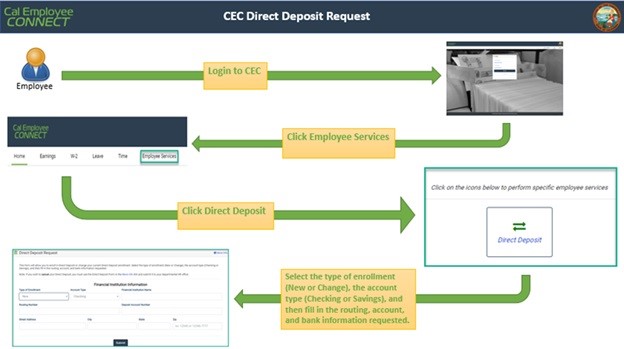
To enroll in the statewide direct deposit program or to make changes, visit the Cal Employee Connect (CEC) website to login.
-
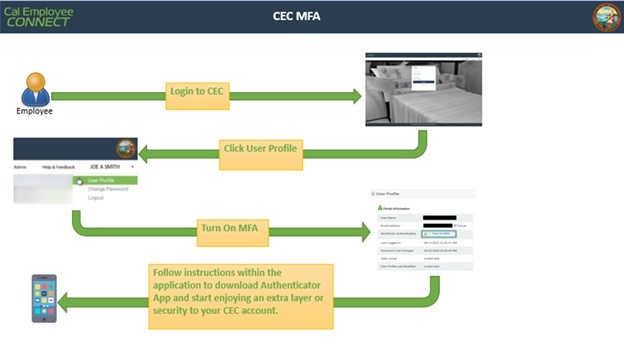
Enable CEC MFA
- Select User Profile, Click Turn On MFA, and follow instructions within the application to download authenticator App to your phone and enjoy an extra layer of security to your CEC account. Once MFA is enabled, you do not need to complete this step again.
-
Click Employee Services
-
Click on Direct Deposit
-
Complete the Direct Deposit fields. Select the type of enrollment (New or Change), the account type (Checking or Savings), and then fill in the routing number, account number, and bank information requested.
Requests received by the 10th of each month should appear in an employee’s bank account on the next pay cycle.
Note: If making changes to your direct deposit, it is extremely important to leave your old account open until your first payment is deposited into your new account. If your old account is closed before the State Controller's Office (SCO) processes the change, the payment will be rejected by the financial institution and a paycheck will not be issued until the payment returns to the SCO.
Instructions to Cancel Direct Deposit:
-
Visit the HR Customer Service Center (HR CSC): Head to the HR CSC, which is located on the second floor of the Student Services Building (bldg. 121-West-2700).
-
Request Form 699 (Direct Deposit Enrollment Authorization): An HR CSC representative will provide you with Form 699 upon request to cancel your direct deposit.
-
Complete and Submit Form 699: Fill out all required fields on Form 699 accurately and legibly. Make sure to provide all necessary information to ensure the cancellation process goes smoothly. Once completed, return to the HR CSC representative.
Please note that a Payroll representative may administratively cancel an employee’s direct deposit for the following reasons:
-
Your Direct Deposit payment is returned (e.g., due to a closed account or invalid routing number); or
-
You have requested a disability benefit; or
-
It is necessary to recover/prevent overpayments.
For detailed instructions on how to enable multifactor authentication (MFA), please refer to the Multifactor Authentication (MFA) User Guide (PDF)
-
An employee must have an active PeopleSoft record and the appointment must appear in the State Controller’s Office (SCO) database before the transaction is processed.
-
An employee (e.g., faculty, staff, student) can make one change per day to their direct deposit.
-
If an error occurs with the entry of the employee’s bank routing or account number, an employee may make the correction in CEC on the next day.
-
On Master Payday, paychecks are distributed at 4:00 p.m., and direct deposits are posted into bank accounts in 1-2 business days, depending on the banking institution. For example, if the payday is May 30, 2024, the direct deposit will occur on May 31, 2024.
-
For more information, please visit our Payroll Calendars page.
-
For questions, an ADA accommodation, or assistance with using CEC, employees may contact Payroll Services at payroll@cpp.edu
W-2 information
The Form W-2 reflects wages paid by warrants/direct deposit payments that were issued to you during the tax year (January 1 through December 31), regardless of the pay period in which you earned the wages.
Form W-2 contains all wages and tax information for you regardless of the number of State of California agencies/CSU campuses for which you worked during the tax year.
The year-to-date gross on your final paycheck stub (earnings statement/direct deposit advice) may not agree with Box 1 (Wages, Tips, Other Compensation) of your W-2, due to the following items:
- Retirement
- Employee paid health
- Tax Shelter Annuity (TSA) Contributions
- Deferred Compensation/Savings Plus Program Contributions
- Dependent Care Account (DCA)
- Health Care Reimbursement Account (HCRA)
- Pre-tax Parking Deduction
- Accounts Receivable Deductions
- Non-Uniformed State Payroll System (USPS) Adjustments (Including taxable fringe benefits)
|
Box 1*
|
Wages, tips, and other compensation
Normally, this box contains your total year-to-date federal taxable gross pay. For some employees, this box contains the total of the following:
Note: Industrial Disability Leave (IDL) payments are considered employee benefits rather than wages and are not included in Box 1. Additionally, IDL payments are not subject to Social Security or Medicare wages and will not be reflected in Box 3 (Social Security Wages) or Box 5 (Medicare Wages and Tips). |
|---|---|
|
Box 2
|
Federal income tax withheld
Year-to-date federal income tax withheld. |
|
Box 3*
|
Social Security (OASDI) wages
Year-to-date wages subject to OASDI, including imputed income. |
|
Box 4
|
Social Security tax withheld
Year-to-date employee Social Security (OASDI) deduction computed based upon the 2019 rate of 6.2% of wages subject to Social Security. The 2019 maximum wages subject to Social Security is $132,900. |
|
Box 5*
|
Medicare wages and tips
Year-to-date wages subject to Medicare, including imputed income. |
|
Box 6
|
Medicare tax withheld
Year-to-date employee Medicare deduction. This amount is based upon the 2019 rate of 1.45% of wages subject to medicare. There is no maximum amount of wages subject to Medicare. |
|
Box C
|
Employer's name, address and ZIP code The address of the State Controller's Office for the State of California. |
|
Box 10
|
Dependent Care benefits
Year-to-date DCA (Dependent Care Account) deductions. |
|
Box 12
|
Tax Sheltered & Tax Deferred Deductions
|
|
Box 13
|
Not titled, but used to identify if employee is in a pension plan.
An "X" is indicated in this box for all employees who are members of the California Public Employees' Retirement Plan (CalPERS). Employees in the Alternate Retirement Plan or Part-time, Seasonal and Temporary retirement plan will not have an "X" indicated. |
*Box 1 and Box 3 or 5 may not agree due to the following items:
- Accounts Receivable Deductions
- Reaching Social Security Maximum Wages
- Deferred Compensation Deductions
- CalPERS or PST Contributions
- Flex Benefit Deductions
- Tax Sheltered Annuity (TSA) Deductions
- Pre-Tax Benefit Deductions
- Pre-Tax Parking Deductions
- Consolidated Benefits
Any questions concerning Federal or State tax returns must be directed to the local Internal Revenue Service or Franchise Tax Board Office.
The W-2 form is issued once a year and is mailed by the State Controller's Office directly to the mailing address you have on file with Payroll Services. W-2's are mailed to your mailing address normally by January 20th of each year. Undeliverable W-2 forms are returned to Payroll Services.
In order for the State Controller's Office to print and mail your W-2 directly to the correct address, changes/corrections must be submitted by December 1st.
Faculty, Staff, and Student Employees may view or update their address in the Common Human Resources System (CHRS) under Personal Profiles.
To access CHRS, log in to myCPP, open Employee Center, and login to CHRS.
Please reference the following job aid to update your address in CHRS.
W-2 forms are mailed to your home address around January 20th of each year. If you do not receive your W-2 by the end of January, you may view the electronic version in Cal Employee Connect, or contact Payroll Services.
If you need a duplicate copy of your W-2, you may request one by completing a Standard Form 436 (PDF) to request a duplicate W-2. The request must include the following:
- Your name
- Your Social Security Number
- Tax year requested
- Your mailing address
- A day time telephone number
- Your signature
More than one tax year may be requested; however, only four prior tax years are available.
There is a $8.50 processing fee per tax year. For employees currently employed, payment for the duplicate Form W-2 must be made via payroll deduction and the appropriate option must be checked on the Form 436. The fee will be deducted from your next paycheck. For FERPS, retired annuitants, student assistants and employees who are not currently employed, payment must be made via a money order or cashier's check made payable to the State Controller's Office. Personal checks are not accepted.
Please send the request and payment, if applicable to the following address:
State Controller's Office
Personnel/Payroll Services Division
P.O.Box 942850
Sacramento, CA 94250-5878
ATTN: W-2 Unit
This feature allows employees to download current and previous years’ Form W-2’s using any internet-connect device. Employees who “opt-in” will be able to view and download their next year’s Form W-2 earlier than those who are still scheduled to receive their printed version in the mail. The W-2 Paperless option will help to reduce or minimize potentially higher future printing and mailing costs moving forward. In addition to these savings, the following benefits could also be realized:
- Eco-friendly by reducing unnecessary paper usage
- Minimize the potential for mail theft
- Negate the time to request and receive a duplicate statement
- Expedite the scheduling and filing of income tax returns
Once logged into your CEC account, the following prompt will appear providing the opportunity to opt-in to receiving a paperless W-2 form.
Tax Withholding Change
-
Login to CEC
-
Click User Profile
-
Turn on MFA
-
Click on Employee Services
-
Click on Withholdings Change
-
Follow instructions within application and complete necessary fields
-
After submitting a Withholdings Change via CEC, the employee and the Payroll Services will receive an email confirmation on a submitted Withholdings Change form. Please note, the confirmation will be directed to the email currently linked to the CEC account.
For more detailed instructions, view the CEC Withholdings Change User Guide (PDF).