1. Click on Print Form to open a new browser tab containing the appointment details in a print-friendly format. 
2. The form will open in a new page. The layout may vary depending on the appointment or form type, but it will look similar to the example shown.
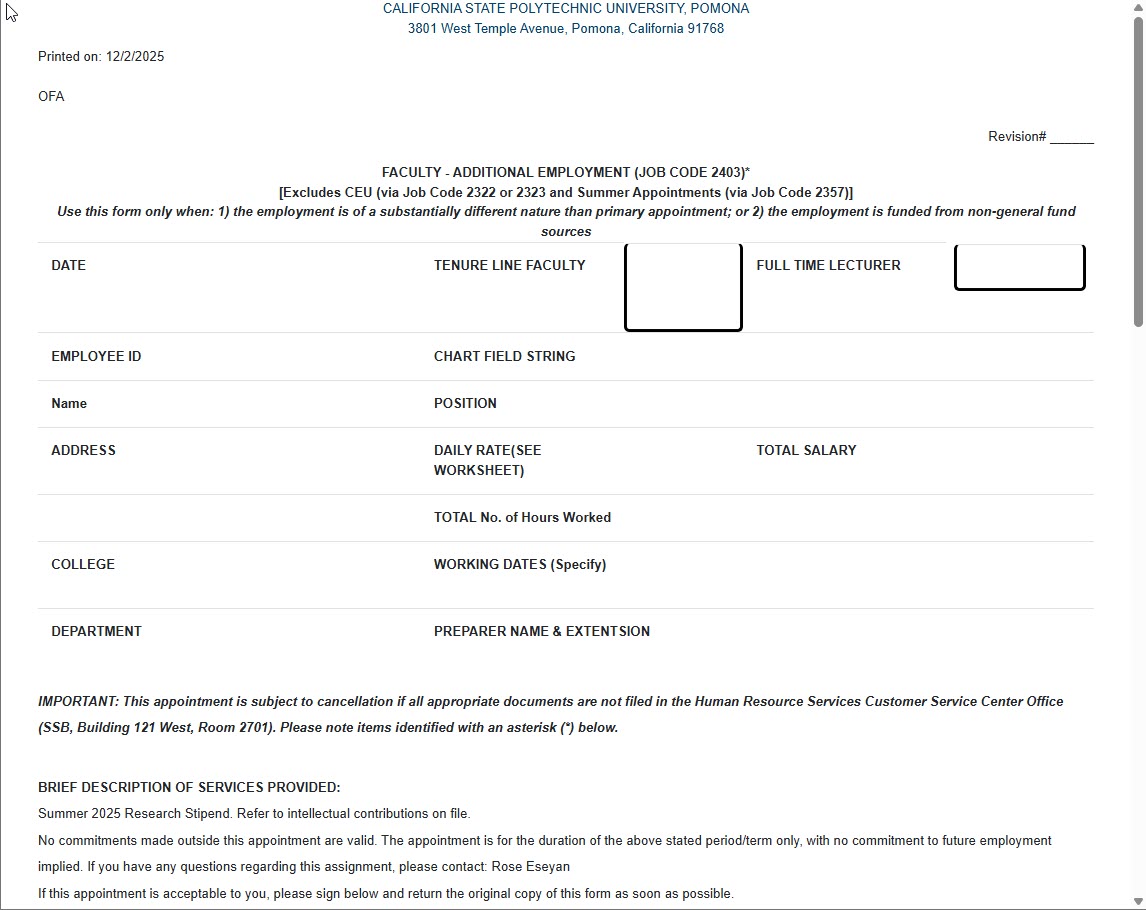
3. To print or save the file, open the browser’s print menu by selecting the three-line (“hamburger”) menu in the top-right corner of the browser, or by pressing Ctrl + P on your keyboard. This will open the Print dialog box, similar to the example below.
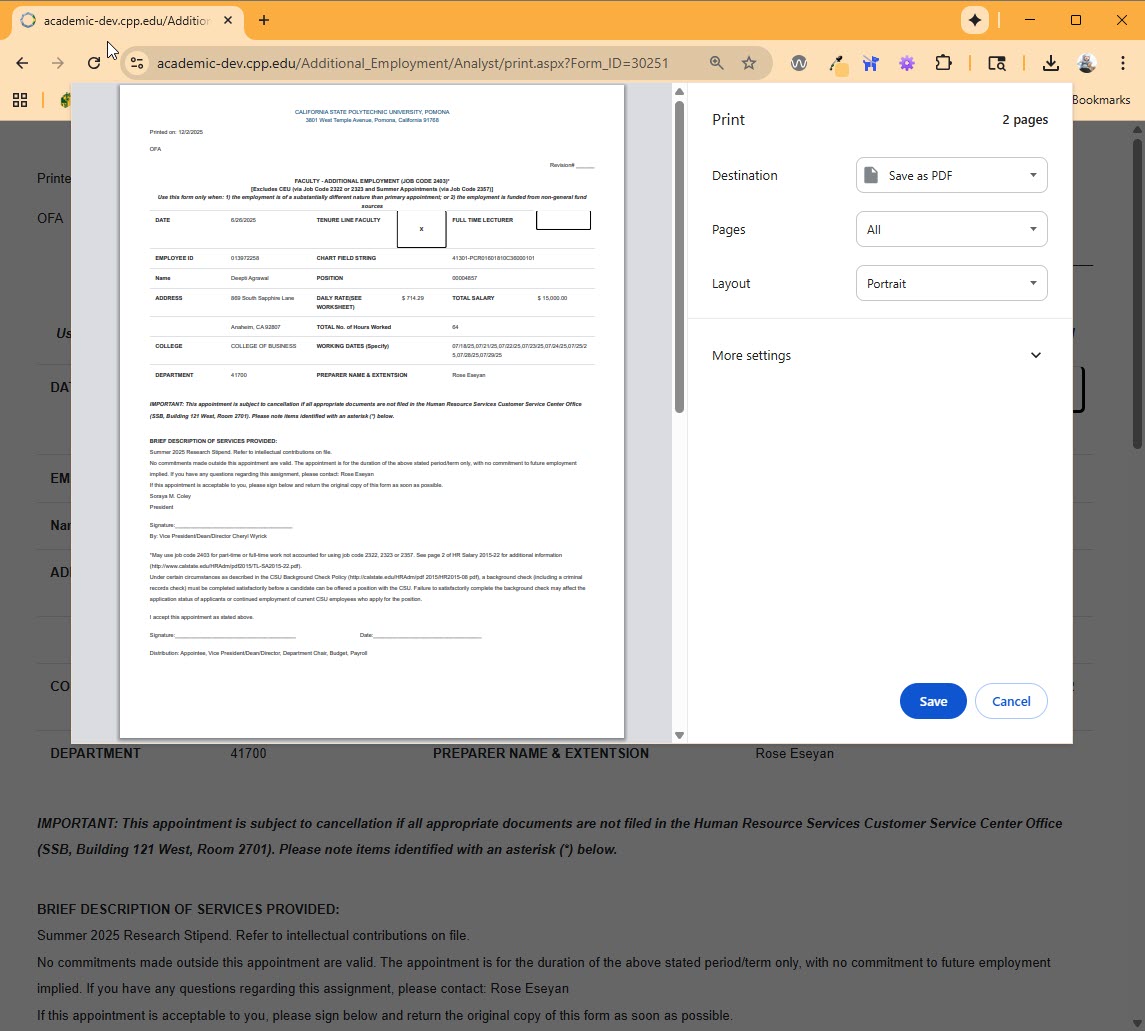
4. In the Print dialog, set Destination to “Print to PDF.”
Then choose a location on your computer where you would like to save the PDF version of the appointment.
Note: Printing or saving to PDF using the steps above will include both the appointment form and the memorandum in the final document.
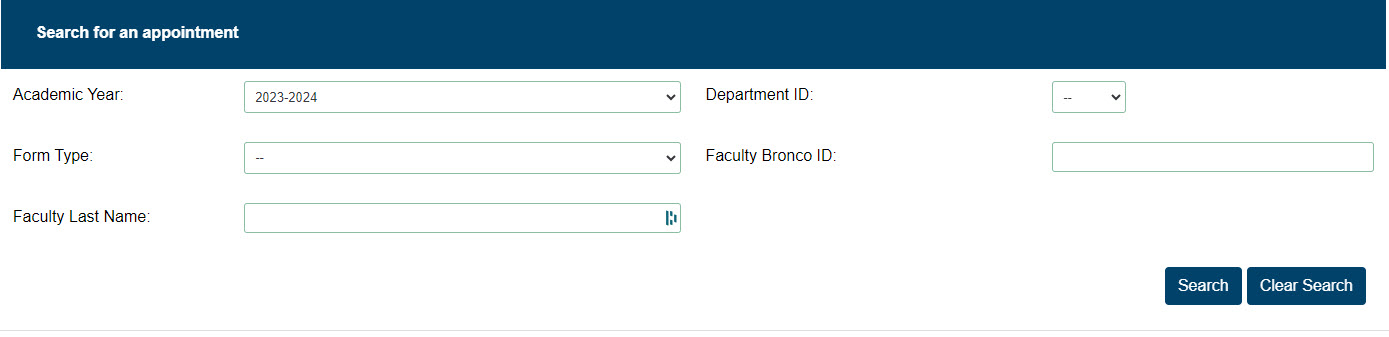
 , if you want to reset the values and clear the search you can click
 hyperlink.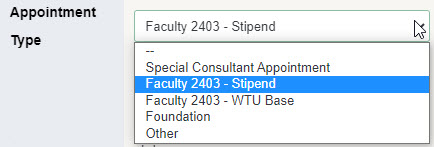
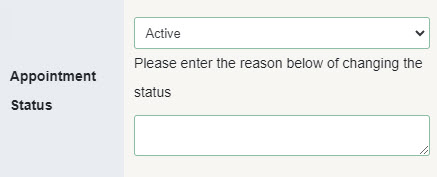











 button.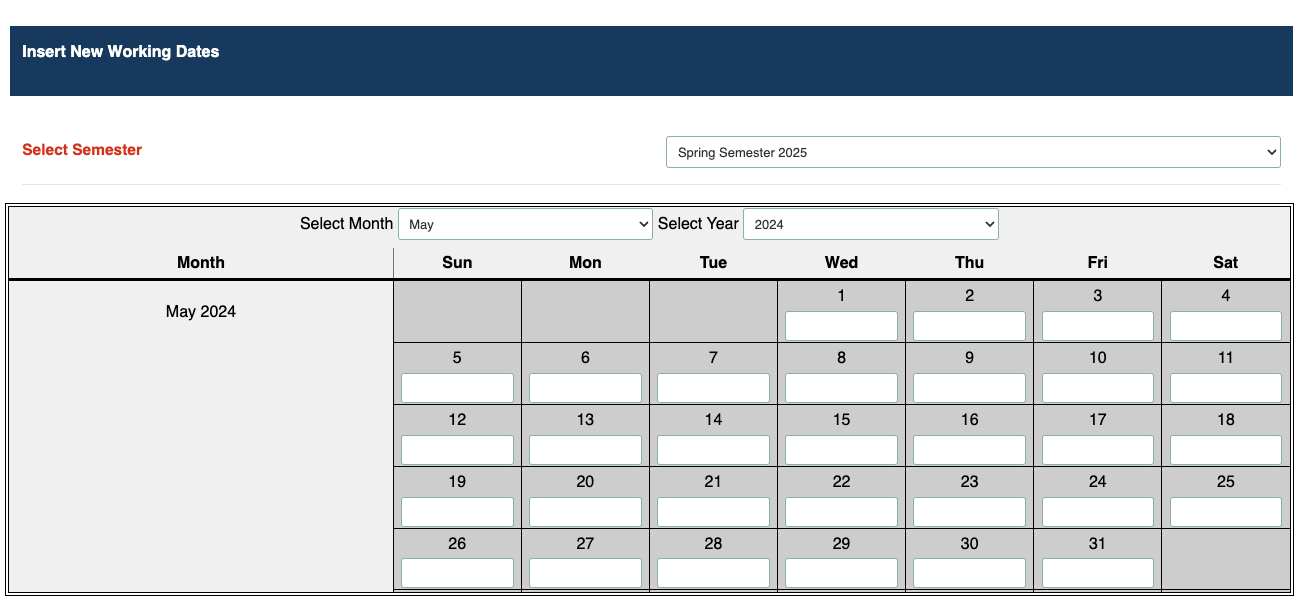



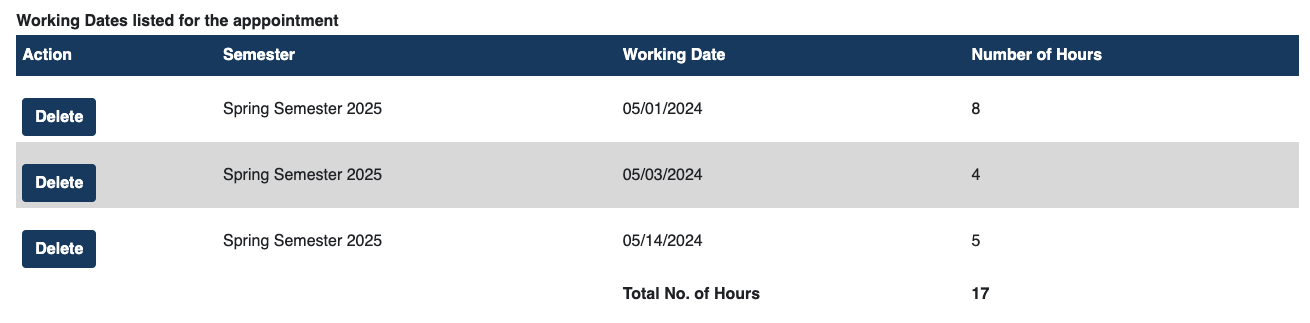
 button. This will update the Working Dates for the appointment.