Entering a Classroom
Room Access
Keys and Keycards
Each classroom will have different forms of access control. Some will need a physical key, while others utilize your Bronco ID card to open the door.
Contact the Room Scheduler if you come across any issues gaining entry into your assigned room. Their contact information can be found under the room details in 25Live.
Logging in
Start-Up a Computer
To log onto any classroom’s computer, you will need to use your Bronco Credentials that you would have needed to set up prior to your appointment at Cal Poly Pomona. If you need help with this, please visit the Information on Bronco Account Claiming and Other Help page.
If the computer itself is not on, make sure that the LED on the front panel is lit up and not blinking. Otherwise, press it once to start it up.
Many classrooms allow for the use of your own personal laptop by providing additional external inputs for all the most common cable types found on modern computers.
Make sure you visit the Eduroam Setup Guide for getting online while you are on campus!
BYOD Connections
Basic Information for Laptops
Given the nature of technology advancement, standard connections are always subject to change. Currently, Cal Poly Pomona considers HDMI as the most common standard display output port available on modern laptops. Adapter rings are provided in every room that requires them to help fill in the gap but support will heavily depend on your personal laptop model.
Basic Classrooms include a single HDMI connection that is installed loosely on the instructor station in a cable pass-through often found below the computer monitor. An adapter ring is provided with other common connections types like USB-C and DisplayPort for your convenience.
Standard Classrooms are outfitted with two dedicated cables stowed in a cable cubby: HDMI and DisplayPort with an adapter ring to cover other common connections as needed.
HyFlex and Active Learning spaces include all of the same common connections as Standard rooms, but may have additional connections around the room for multiple displays depending on the rooms design.
NOTE: While we strive to provide all faculty with all of the necessary tools to utilize the classrooms at Cal Poly Pomona, compatibility is something that will differ from computer to computer. Some personal laptops may not support display output from any of their available ports, and for these cases faculty members are expected to provide their own adapter hubs. If you need help finding the correct one please contact support at (909) 869-4040 for assistance.
Using Laptop Connections
A Snippet on Control Panels
Once you have securely plugged your laptop or external hub into the system using the provided cable(s), you will need to switch the projector over to display the correct input source.

Basic Classrooms will require you to locate the projectors remote and switch the input source manually. Some newer Basic Classrooms will have a dedicated 4-port switcher installed at the instructor station that handles the input switching for you. Laptop are always set to "INPUT 2".
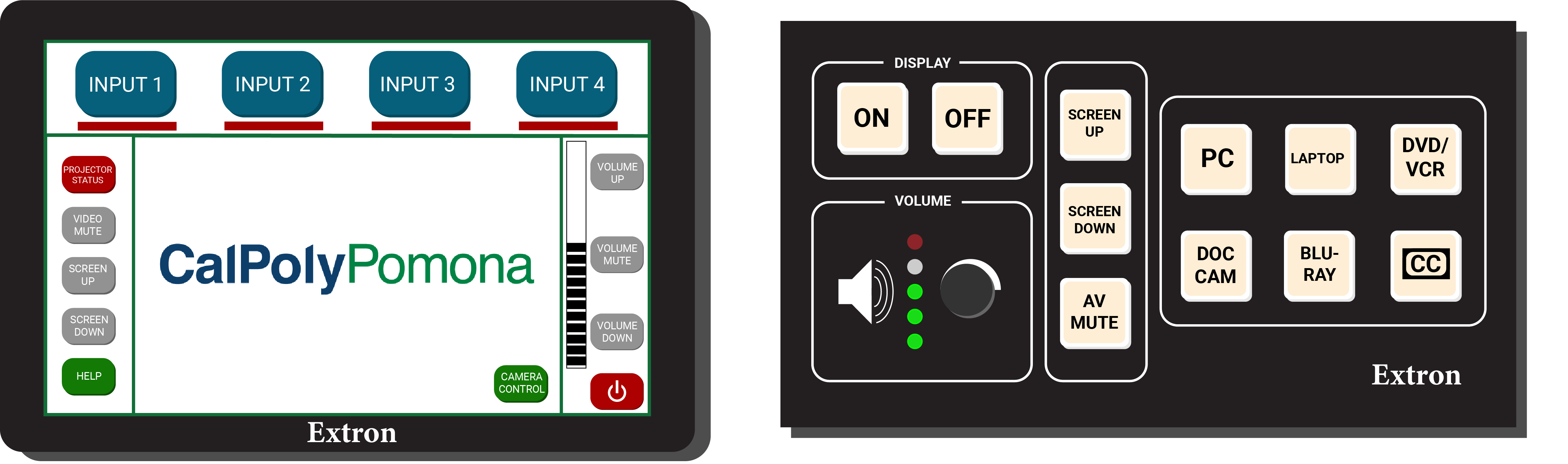
Standard Classrooms will either have a button panel or a touch panel with labeled sources such a "Laptop", "HDMI", or "USB-C" depending on the dedicated cable you are plugging into.
HyFlex and Active Learning spaces will follow Standard Classroom controls, but may include more than one control surface depending on the rooms design.
Bronco OneDrive
Access All of Your Content
Your Bronco Account includes access to Microsoft OneDrive; this is a platform that you can access from any Cal Poly Pomona computer you are logged into. This makes it easy to transfer downloads from one computer to another so long as you are logged into your account. Please follow the How to Use OneDrive (PDF) for more information.
A USB flash drive can also be used to transfer files from your personal laptop to a classroom computer if you are logged in with a valid Bronco Account. These files can be left on the computer, and they will also stay with your account regardless of what classroom you may be using via OneDrive.
Troubleshooting
This section covers the most common issues that should be the first set of steps you take before calling support.
- Cal Poly Pomona requires each faculty member to provide their own laptop adapter as every laptop is different and uses different connection standard.
- To help in this, an adapter ring is placed in every classroom that includes the most common connections found today. If the adapter is missing, contact Classroom Support for assistance at (909) 869-4040
Frayed or loose cables
- Make sure that your adapter/cable is securely connected to your laptop and refrain from moving it as much as possible
- If your adapter is frayed you will need to replace it soon. A temporary adapter set can be requested from Classroom Support at (909) 869-4040
- If the main cable is frayed, please contact Classroom Support and they will schedule to replace it as soon as possible
- Most of our projectors only support up to a resolution of 1080p on newer projectors and 720p on older ones. Newer laptops will want to output a higher resolution so this setting will need to be adjusted to 1080p or 720p
- To adjust your resolution, visit the corresponding link below:
- PC Settings
- Mac Setting
Windows
- Go to Settings > Display
- Identify your monitors
- Arrange them how they are set up in real life
- For more information visit the Microsoft Web Guide for Multiple Displays
- Click on the Apple Logo > System Settings > Display
- Select either Extend or Mirror from the drop-down list
- Extend will allow you to identify and arrange your monitors in the settings window
- Mirror will mirror the main display over to the projector so they show the same picture